
OpenArt Plugin for After Effects
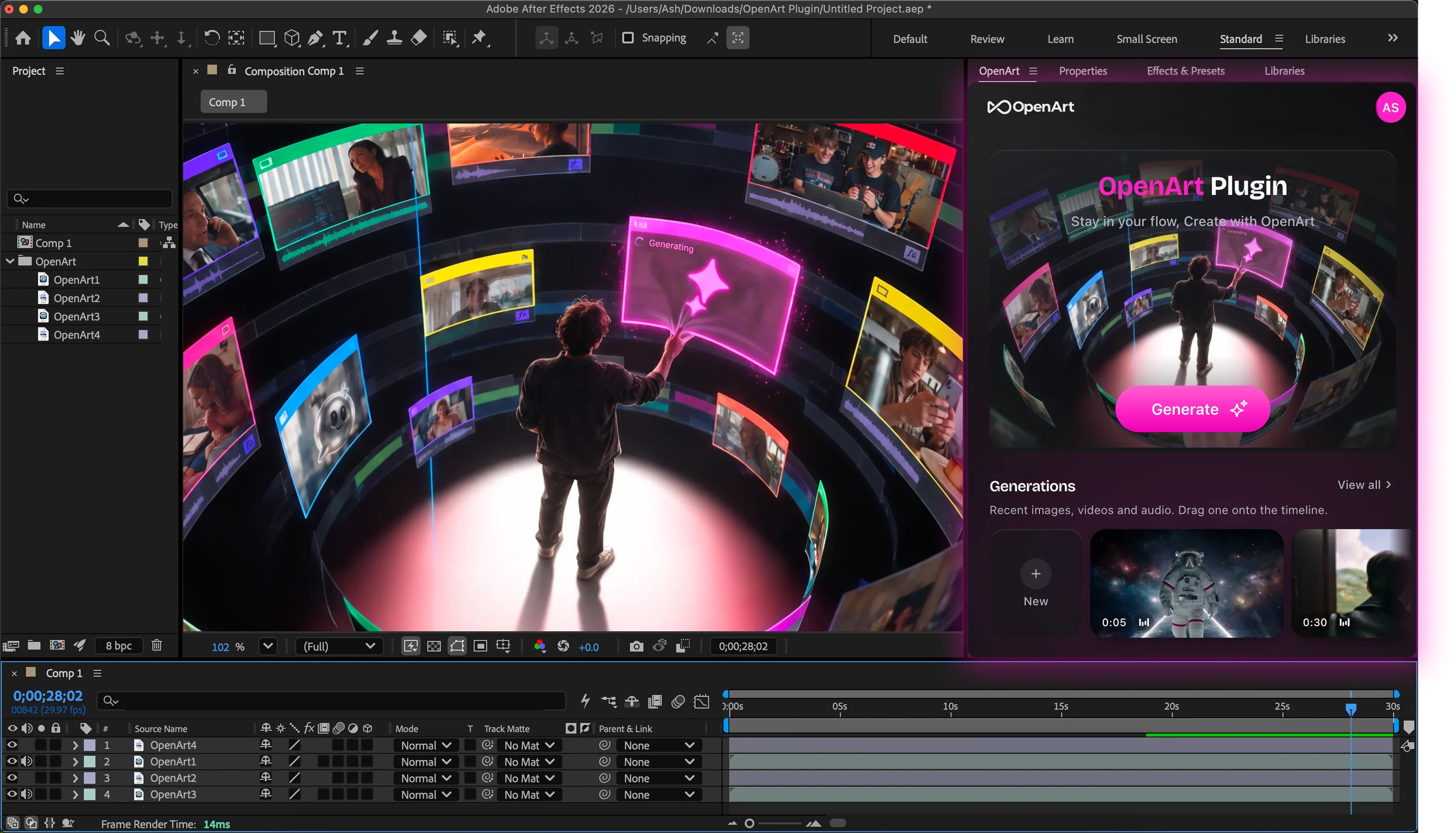
Generate images and videos with the OpenArt plugin inside After Effects. Drag a composition in as a reference, then drag the generated image or video back onto your timeline.
Download the OpenArt After Effects Plugin
Install OpenArt for After Effects
Run the installer
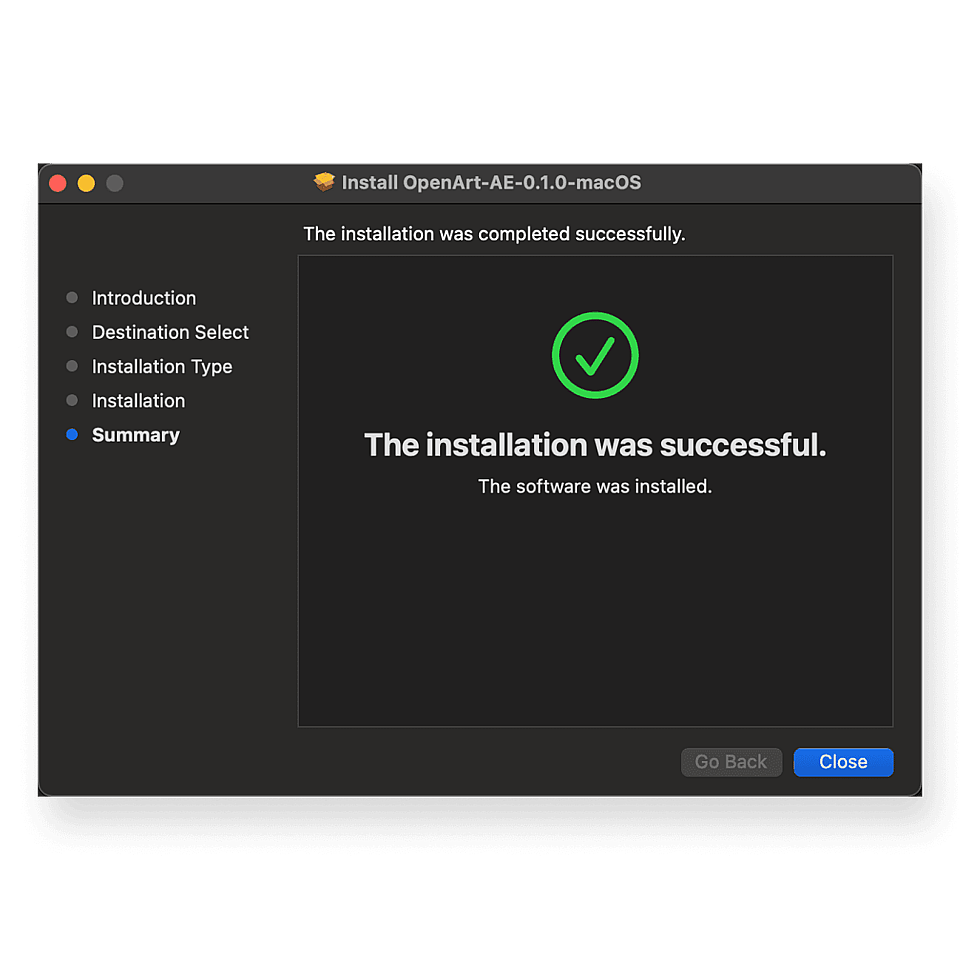
Quit After Effects, open the installer, and follow the setup to install the OpenArt plugin.
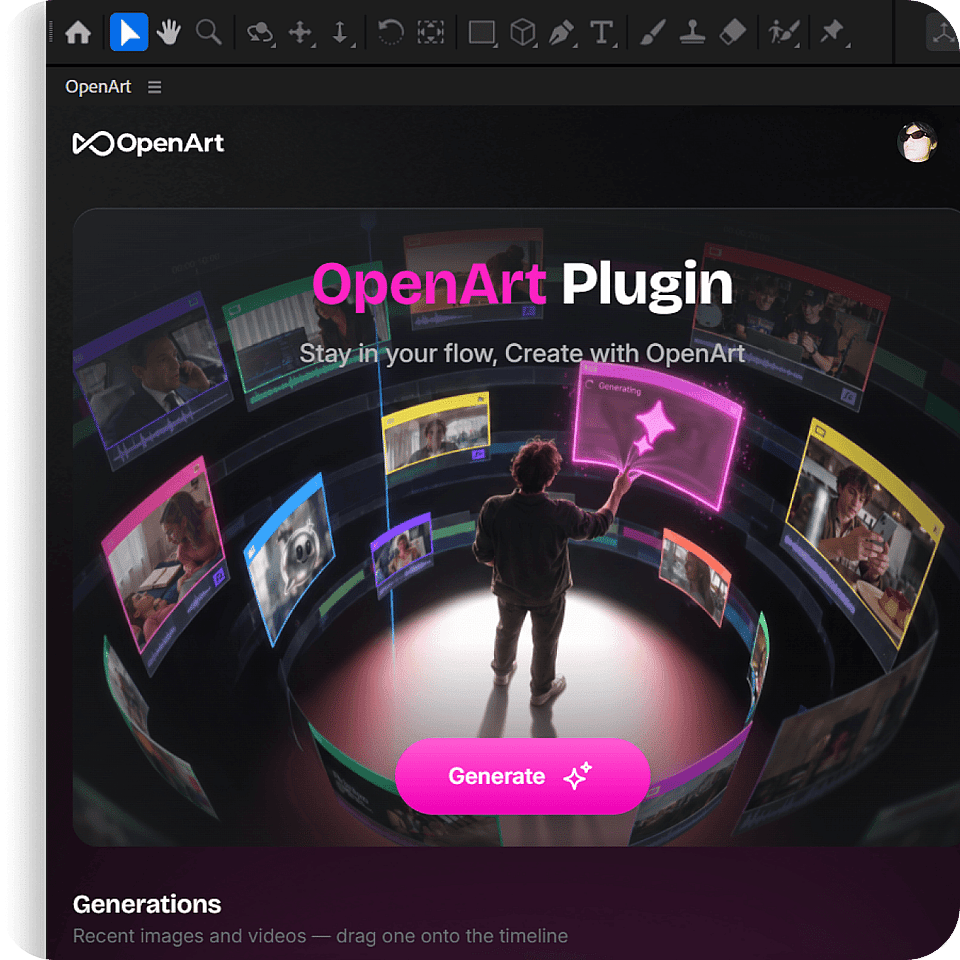
Open the plugin in After Effects
Launch After Effects → choose Window → Extensions → OpenArt. Drag the OpenArt panel to a workspace you're familiar with.
Download the installer
Download the installer here, or from the top of the page. If Windows Defender blocks it, click More info → Run anyway.
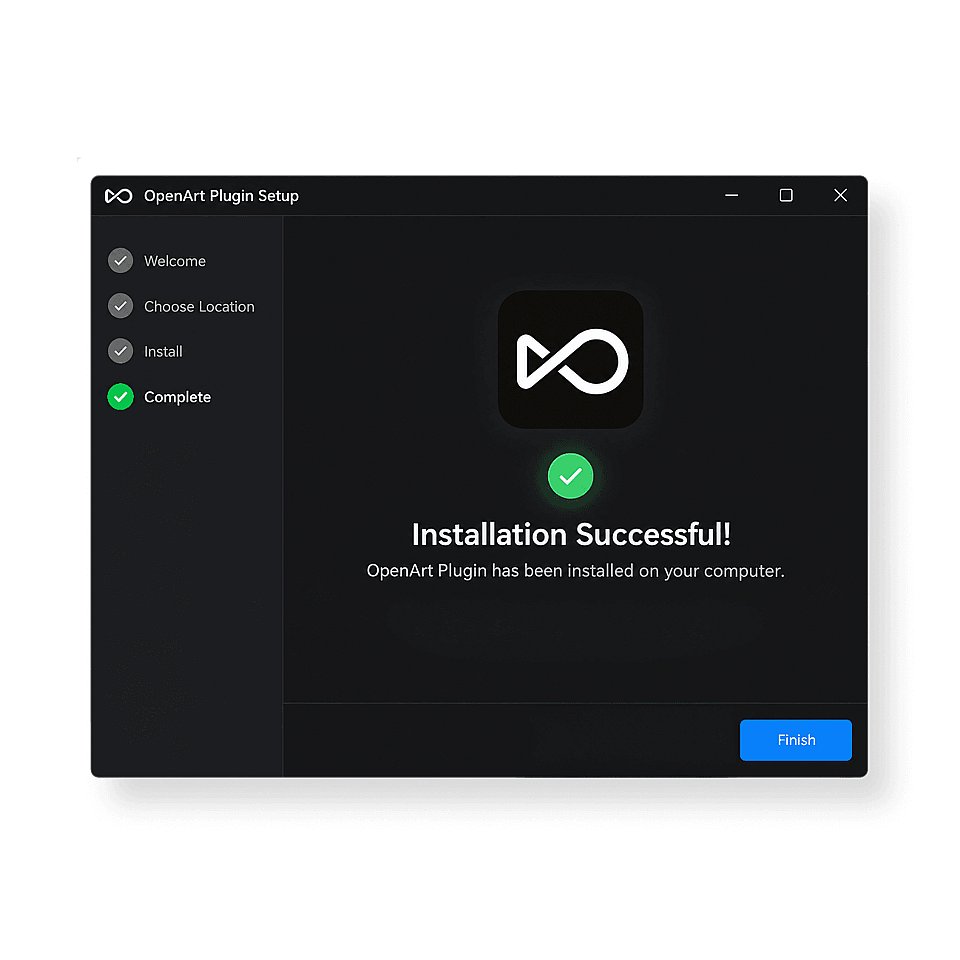
Run the installer
Quit After Effects, open the installer, and follow the setup to install the OpenArt plugin.
Open the plugin in After Effects
Launch After Effects → choose Window → Extensions → OpenArt. Drag the OpenArt panel to a workspace you're familiar with.
From generation to composition
Create with AI, use your own footage as a reference, and bring the results into your edit—all inside After Effects.
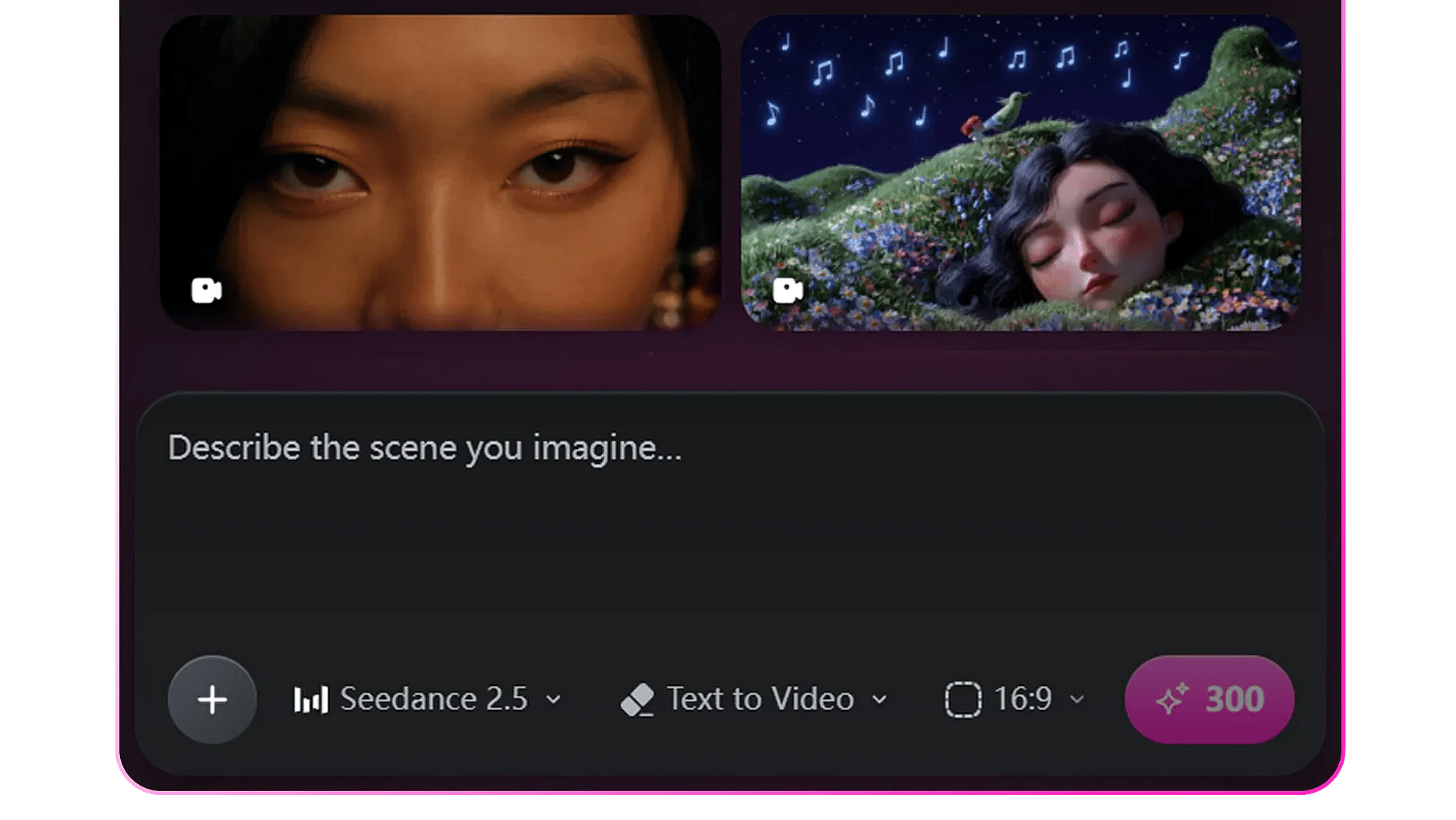
Create AI videos inside After Effects
Turn a prompt into a video without leaving After Effects. Add image, video, or audio references to guide the result. One click to add the generated video to your After Effects timeline.
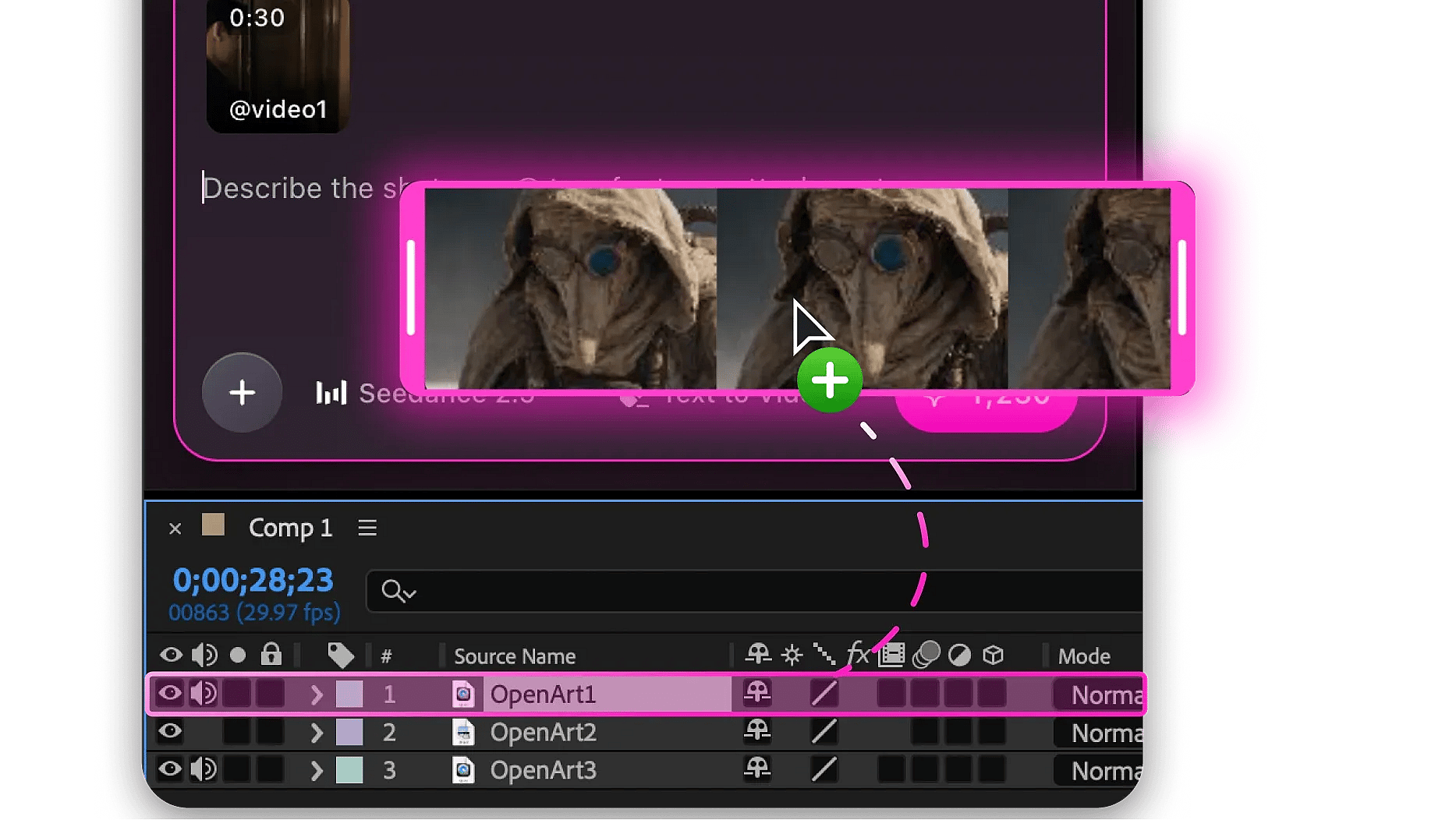
Create with your own footage
Drag layers or compositions into OpenArt as references. Trims, masks, effects, and speed changes are included in the rendered reference.

Bring results straight into your composition
Results drop into your comp as regular After Effects layers, right at the playhead. Drag it onto the timeline or click download, and it starts at the current time.
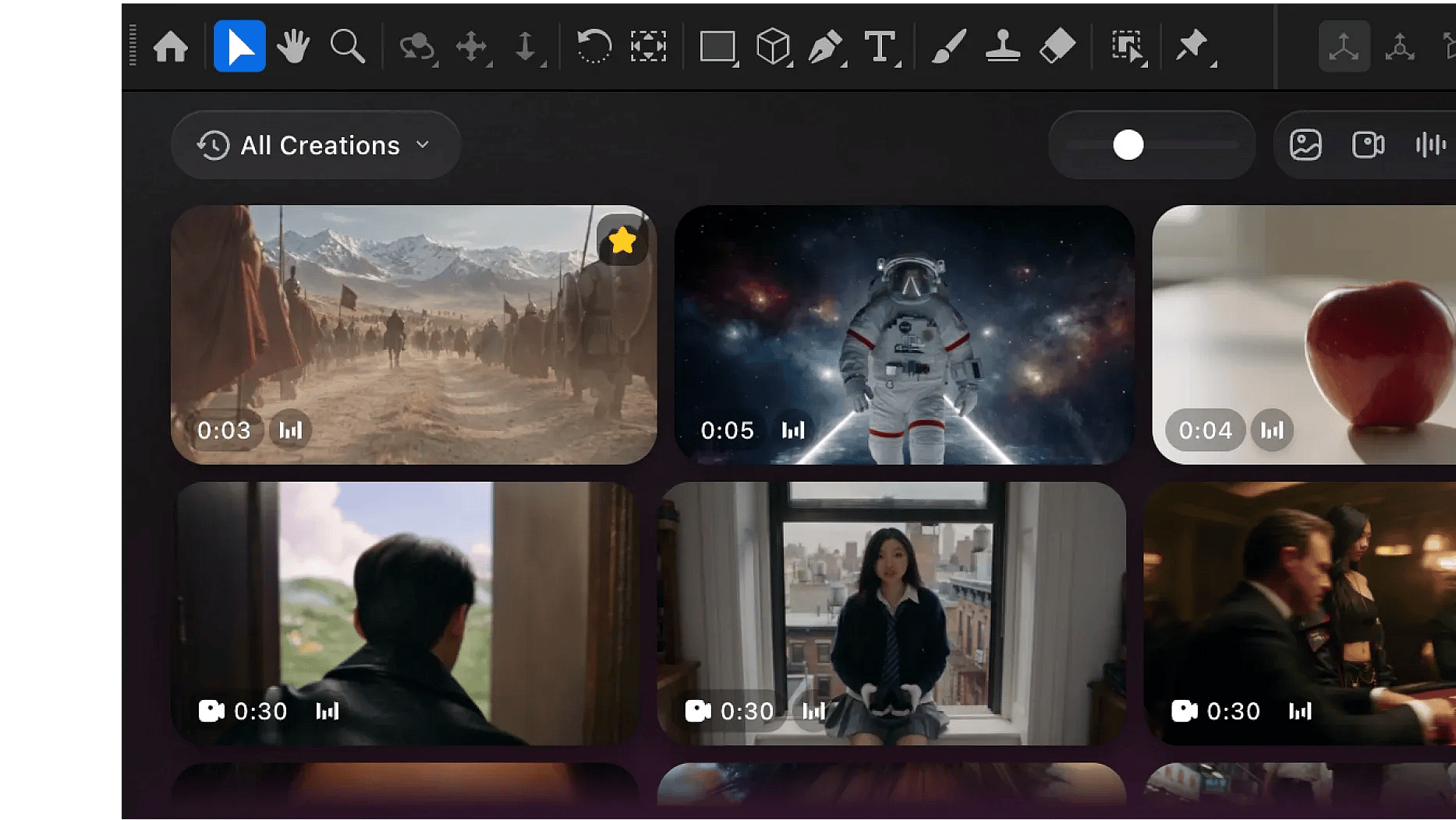
Every Creation, Synced and Ready to Recreate
Your whole OpenArt gallery, synced and right inside After Effects. Switch workspaces in a click, and use Recreate to rerun any result with the same settings.