



Claude AI Video Generator
OpenArt's MCP connector turns Claude into an AI video generator. Connect it once and the Claude AI video generator runs on Seedance 2.5, Veo 3.1, Kling 3.0 and more, using the OpenArt account you already have.
How to Set Up Claude AI Video Generator
Setting up the Claude video generator takes about a minute. You add OpenArt as a custom connector in Claude, sign in, and ask for your first video.
Open Claude's Connector Settings
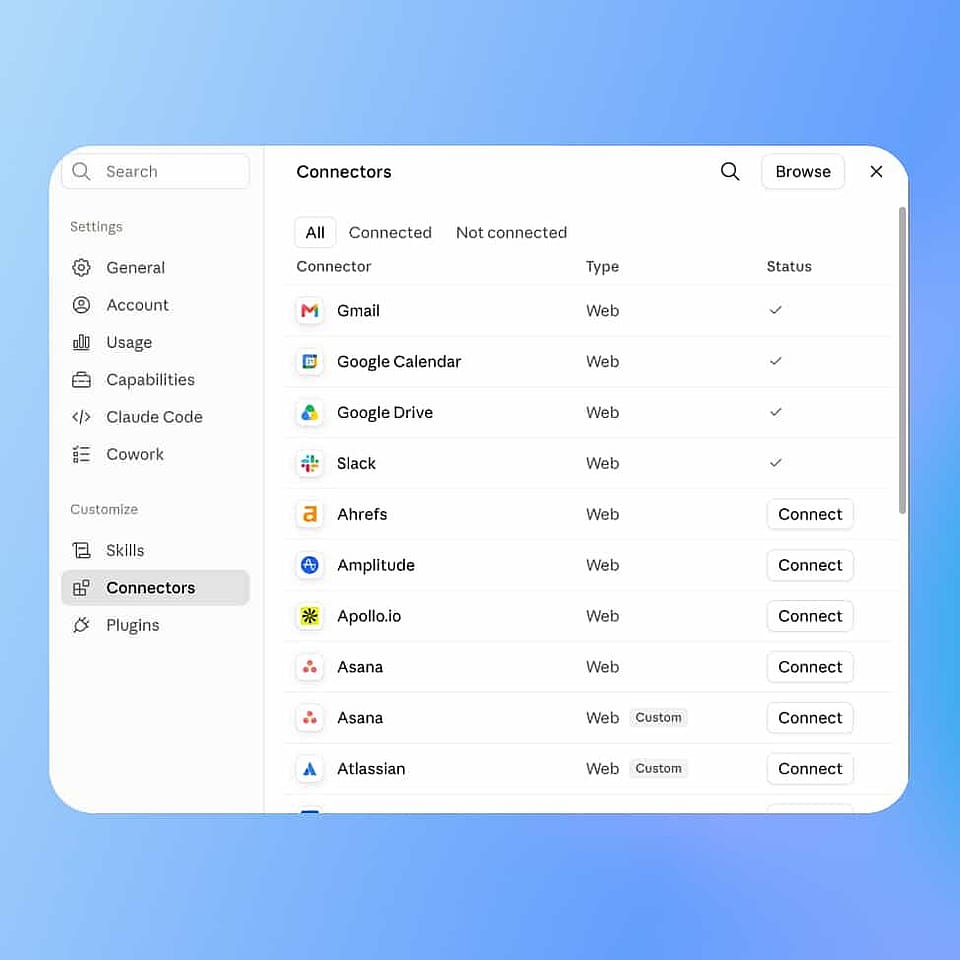
Open the Claude app on your desktop or go to claude.ai in your browser. Open Settings, click Connectors, then scroll to the bottom of the connector list and click Add custom connector.
Add the OpenArt Connector
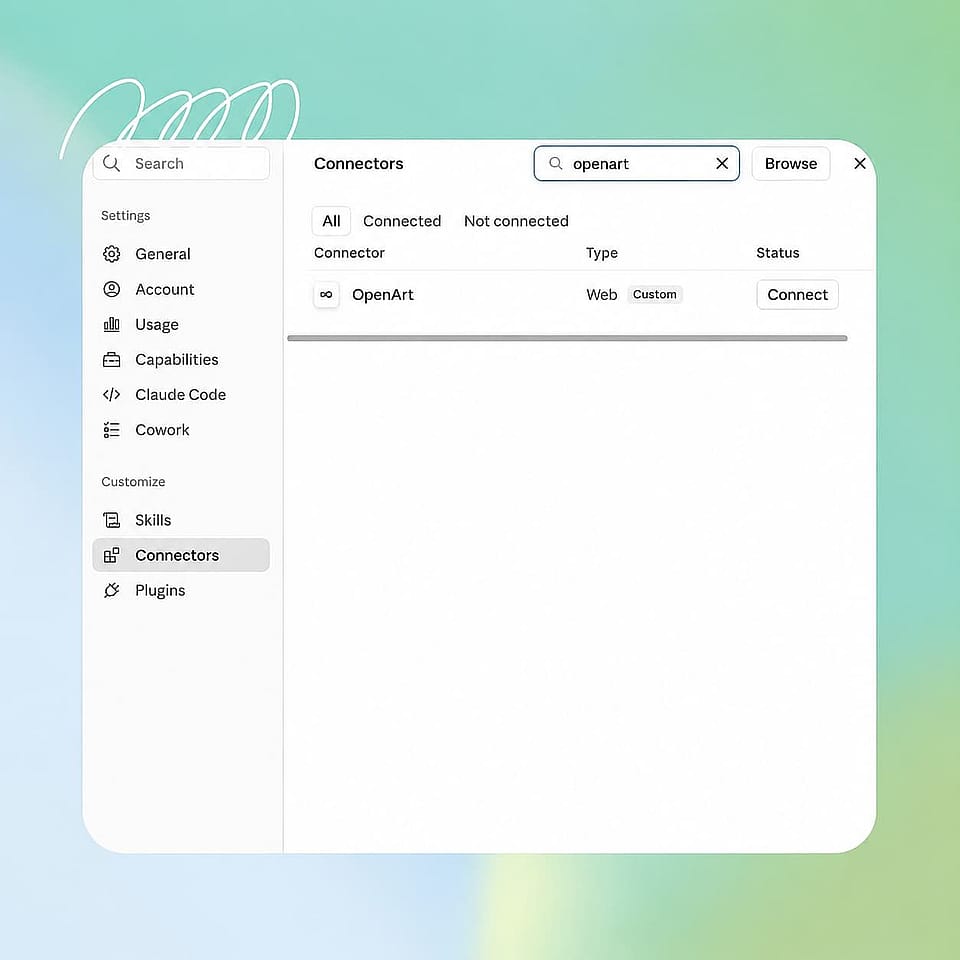
Name the connector OpenArt and paste https://mcp.openart.ai/mcp into the URL field, and you can leave the advanced settings empty. Click Add, and Claude checks the link before it saves the connector.
Sign In and Prompt It
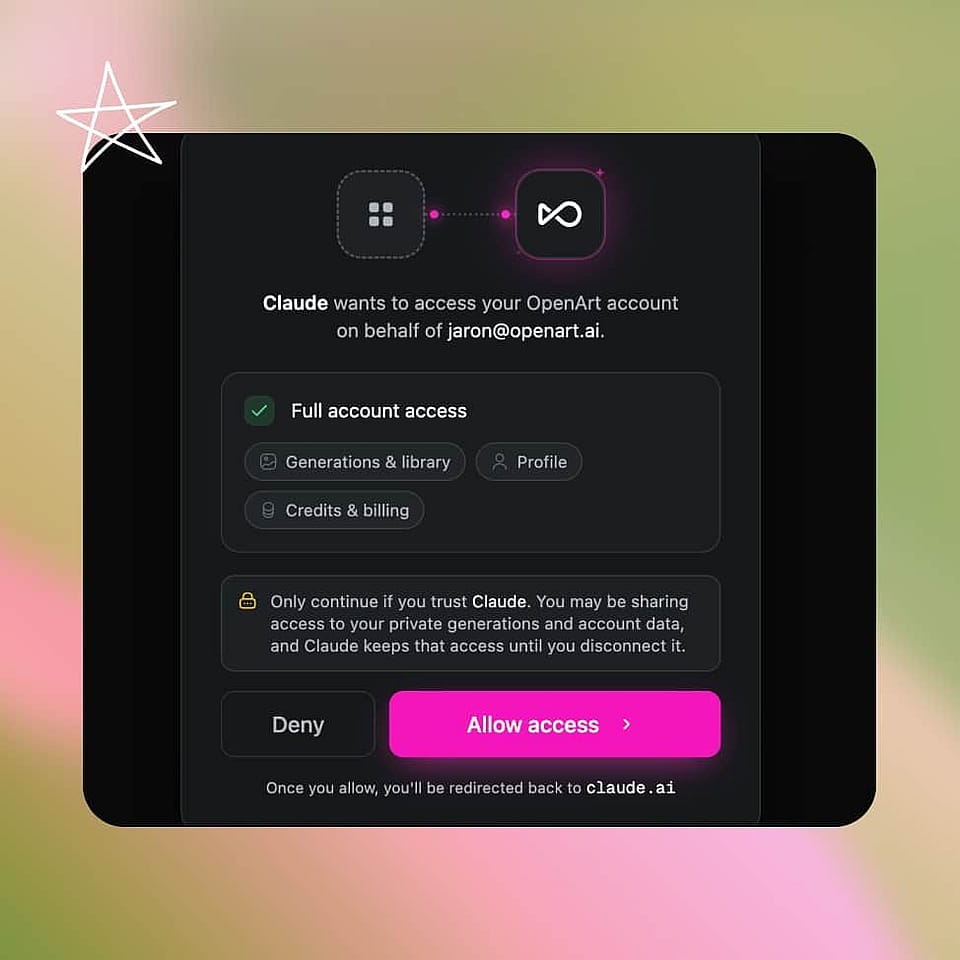
Click Connect and sign in to OpenArt, then set permissions to Always Allow. Describe the clip, like "Make a 10-sec video of a rainy Tokyo alley, using Seedance 2.5", and it is delivered in the chat.
Access All of OpenArt From Your Claude
Make Videos Without Leaving Your Claude Chat
Pick the Best Video Model That Fits
Name the model you want, like Veo 3.1 or Kling 3.0, and Claude uses it. Ask for a 30 second clip with voice lines and Seedance 2.5 is the better fit. If you are not sure, describe the video and OpenArt MCP picks a model for you.
Animate Any Photo You Already Have
Upload a photo in your Claude chat and say what should move. A picture of a coffee cup becomes a video with steam rising and the camera pulling slowly back. This is the same AI video generator you use on the OpenArt website, so you get the same quality.
Keep One Character Across Every Shot
Send a picture of your character or your product, and OpenArt puts that same subject into a new scene instead of only moving the old photo. Build the look once in OpenArt Characters or with the Claude AI image generator, then pass those pictures into Claude as references for new clips. Everything is fully synced with your OpenArt library.
Storyboard the Whole Scene With Smart Shot
Ask for a shot plan first and Smart Shot writes one out: reference views, the set, a top down camera map, storyboard frames, and lighting notes. Read it in the chat, change what you want, then tell Claude to render the video from that plan. You only pay for the video once the plan looks right.
Videos You Can Make From a Claude Chat
Claude is where you already work and plan, so why switch the apps for making videos?
Product Videos for Online Stores
Turn one product photo into a clip that shows the item in use, or drop the product into a holiday scene. A photo of a candle becomes a video of the flame moving. Sellers on Amazon and Shopify can have a product video ready the same day the stock lands, without booking a shoot or hiring a crew.
Try it NowShort Videos for Social
Ask for a vertical clip for TikTok or Instagram, watch it, then ask for two more versions with a different opening. Sound comes with the video on models like Seedance 2.5 and Gemini Omni 1.1 Flash, so the clip is ready to post without extra software.
Try it NowAds and Campaign Variations
Send one brief to a couple of models and compare the results side by side before you pick a winner. Ask for the same video ad in vertical and square in one chat. Every version saves to your OpenArt library, so next month's campaign starts from the clips that already worked instead of a blank page.
Try it NowPitches and Demo Videos
You are often already writing the pitch in Claude, so ask for the demo video in the same chat. Describe the scene, look at a couple of options, and pick the one that matches your deck. You get a custom video instead of stock footage everyone has seen.
Try it NowFrequently Asked Questions
Yes, once you connect OpenArt. Claude brings the writing and the thinking, OpenArt brings the video models, and the finished clip lands in your chat.
OpenArt MCP has no extra cost. Videos use the same credits as on openart.ai, and MCP is included on every plan from Starter up. New accounts get 40 free credits to try it out, no credit card required. See OpenArt pricing for plan details.
Most models make clips up to about 15 seconds. Seedance 2.5 and Wan 3.0 go up to 30 seconds in one shot, and Extend Video tool adds more time to a clip you already like.
Yes, this is image to video inside Claude. Just upload the picture in your Claude chat and say what should be animated. You can also ask for that subject to show up in a brand new scene instead of the one in the photo.
Every clip saves to your OpenArt library, the same place the rest of your work lives. Open it on the website later to download it, edit it, or use it as a reference for something new.
Yes. OpenArt also works as a plugin in ChatGPT, see the ChatGPT video generator, and as an MCP server in Cursor, all drawing from one OpenArt account.
No. Signing in with your existing OpenArt account is the whole setup, and it takes about a minute.
Seedance 2.5, Seedance 2.5 Draft, Seedance 2.0, Veo 3.1, Kling 3.0, Wan 3.0, MiniMax H3 Max, Gemini Omni 1.1 Flash and PixVerse V6. Pick one yourself or let Claude choose.
Yes. Seedance 2.5, Seedance 2.0, Wan 3.0 and Gemini Omni 1.1 Flash make the sound with the picture, so voice lines, sound effects, and music match what is on screen.
No. OpenArt makes the video in the background while your chat keeps going. Ask Claude your next question, and the finished clip drops into the conversation as soon as it is ready.
Each video draws from your existing OpenArt credits, and the cost depends on the model, the length, and the resolution. There is no separate bill for the connector.
Create without limits
Join thousands of creators using OpenArt to generate stunning images, videos, and more — all in one platform.
Get Started for Free →