


Claude AI Image Generator
OpenArt's MCP connector turns your Claude into an AI image generator. Connect it once and make images from right within your Claude chats. It runs on GPT Image 2.5, Nano Banana 2 Lite, Seedream 5.0 and more, using the OpenArt account you already have.
How to Set Up Claude AI Image Generator
Setting up the Claude image generator takes about a minute. You add OpenArt as a custom connector in Claude, sign in, and start asking for images.
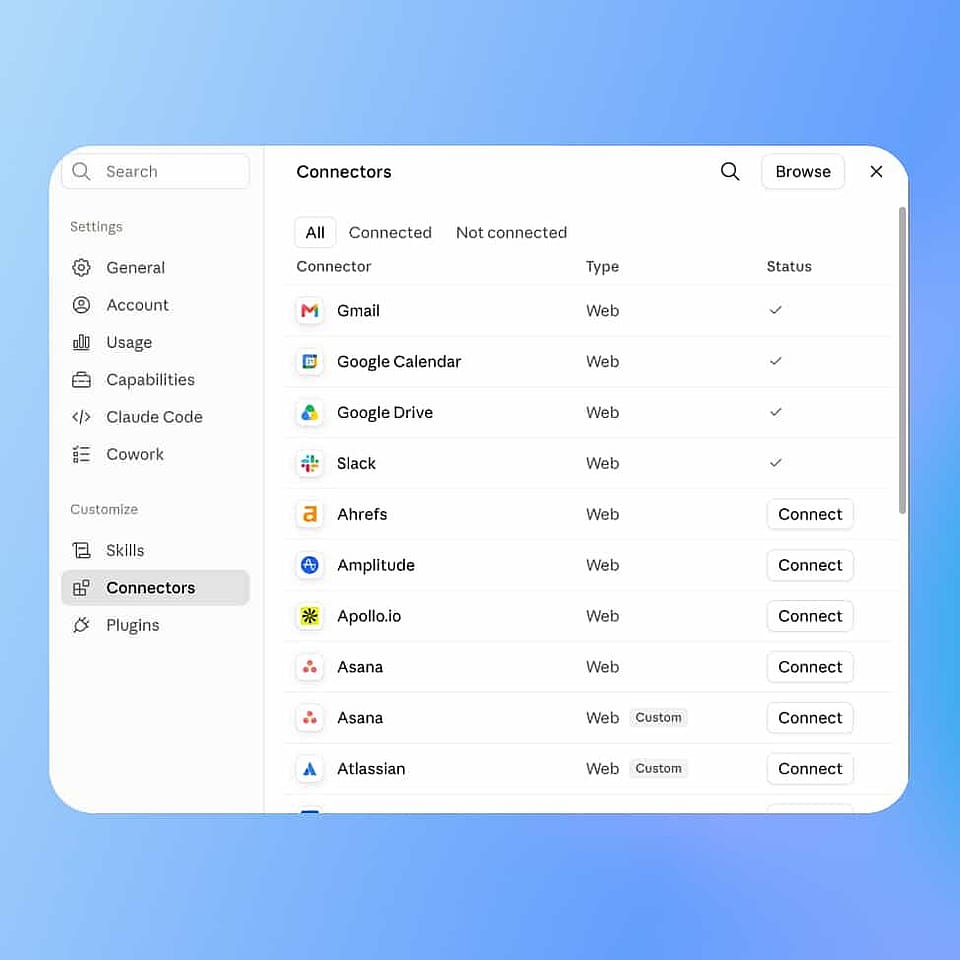
Open Claude's Connector Settings
Open the Claude app on your desktop or go to claude.ai in your browser. Open Settings, click Connectors, then scroll to the bottom of the connector list and click Add custom connector.
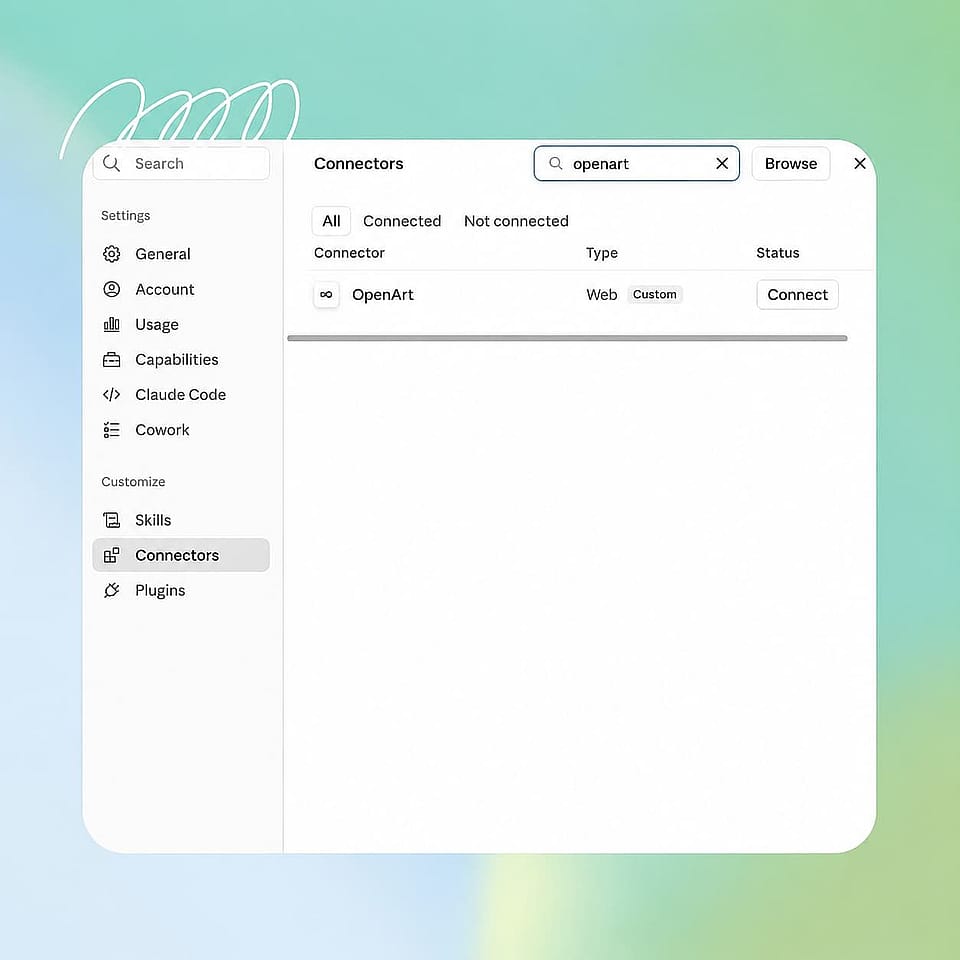
Add the OpenArt Connector
Name the connector OpenArt and paste https://mcp.openart.ai/mcp into the URL field, and you can leave the advanced settings empty. Click Add, and Claude checks the link before it saves the connector.
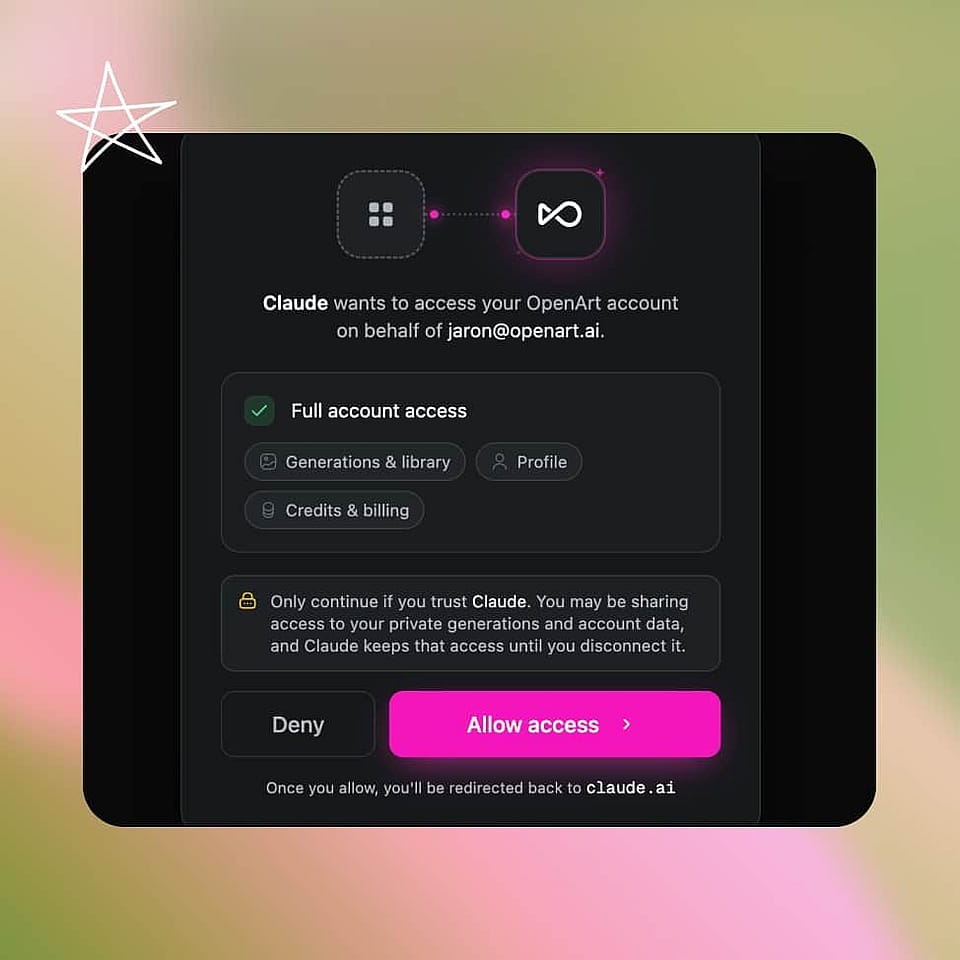
Sign In and Prompt It
Click Connect and sign in to OpenArt, then set permissions to Always Allow. Describe the picture, like "Make a brown-colored poster for a coffee shop, using GPT Image 2.5", and it is delivered in the chat.
Access All of OpenArt From Your Claude
Make Images Without Leaving Your Claude Chat
Pick the Model That Fits Your Picture
Name the model you want, like GPT Image 2.5, Seedream 5.0 or Grok Image 2.0, and Claude uses it. If you are not sure, just describe the picture and Claude picks a model for you.
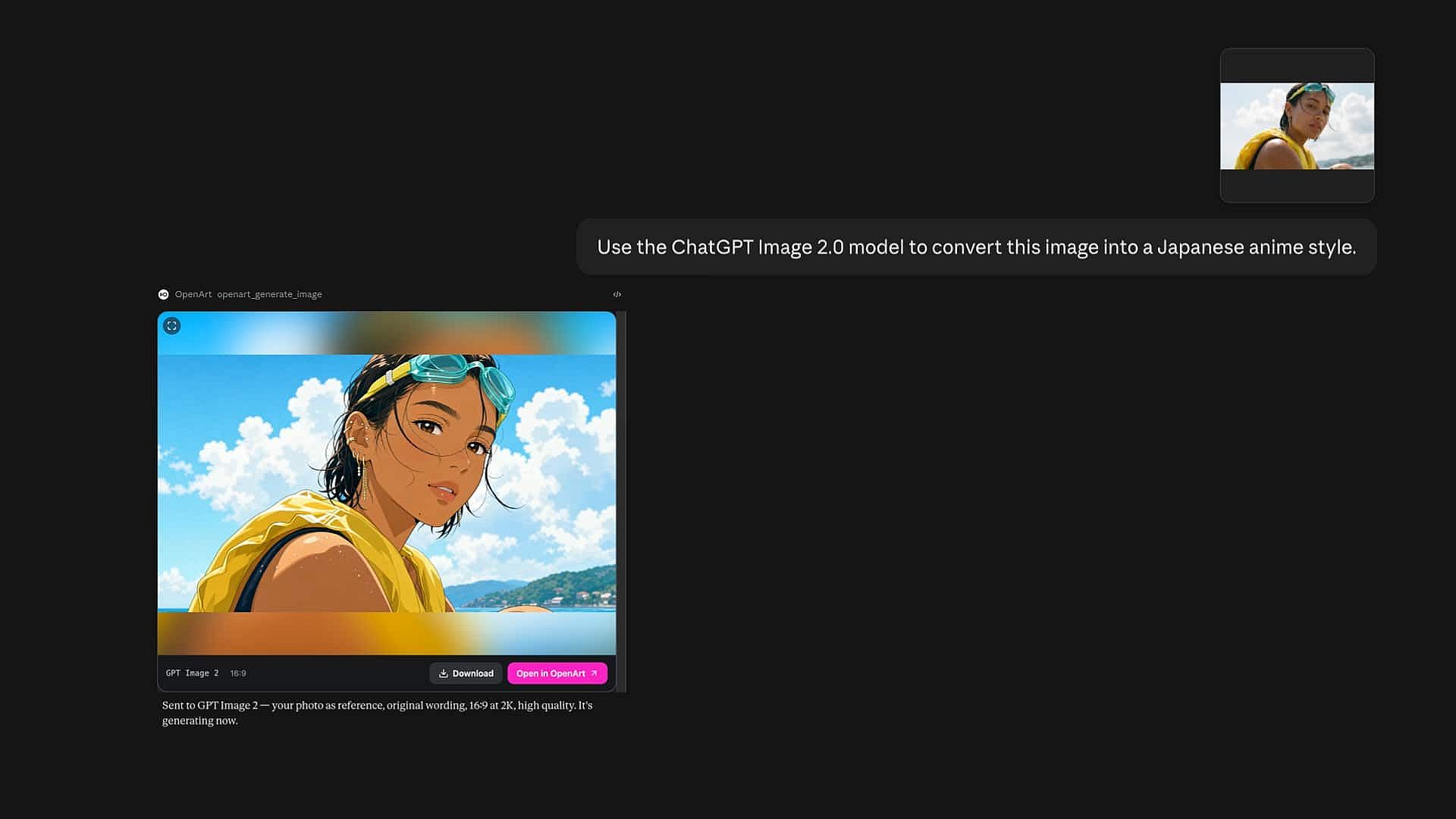
Turn Your Photo Into a New Image
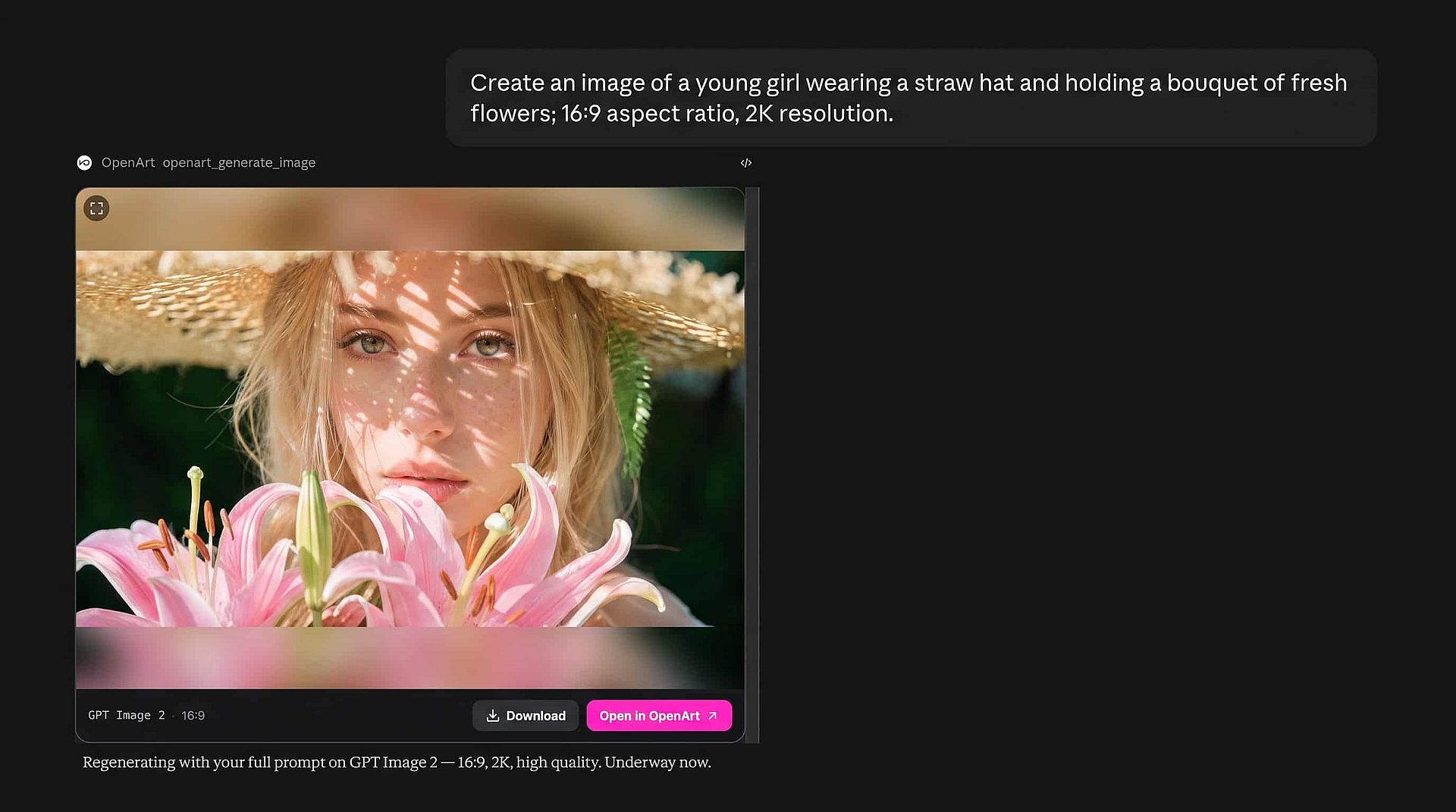
Upload a photo in your Claude chat and say what you want changed, the same way Chat mode works on OpenArt. You can swap the background, change the lighting, or put the subject in a new place, and the person or product still looks like itself. This is the same AI image generator you use on the OpenArt website, so you get the same results.
Keep Working While It Generates
OpenArt makes the picture in the background while your chat keeps going. Ask Claude your next question right away, and the finished image drops into the conversation as soon as it is ready. One thread holds the whole job, from the first idea to the final picture.
Fully Synced With Your OpenArt Library
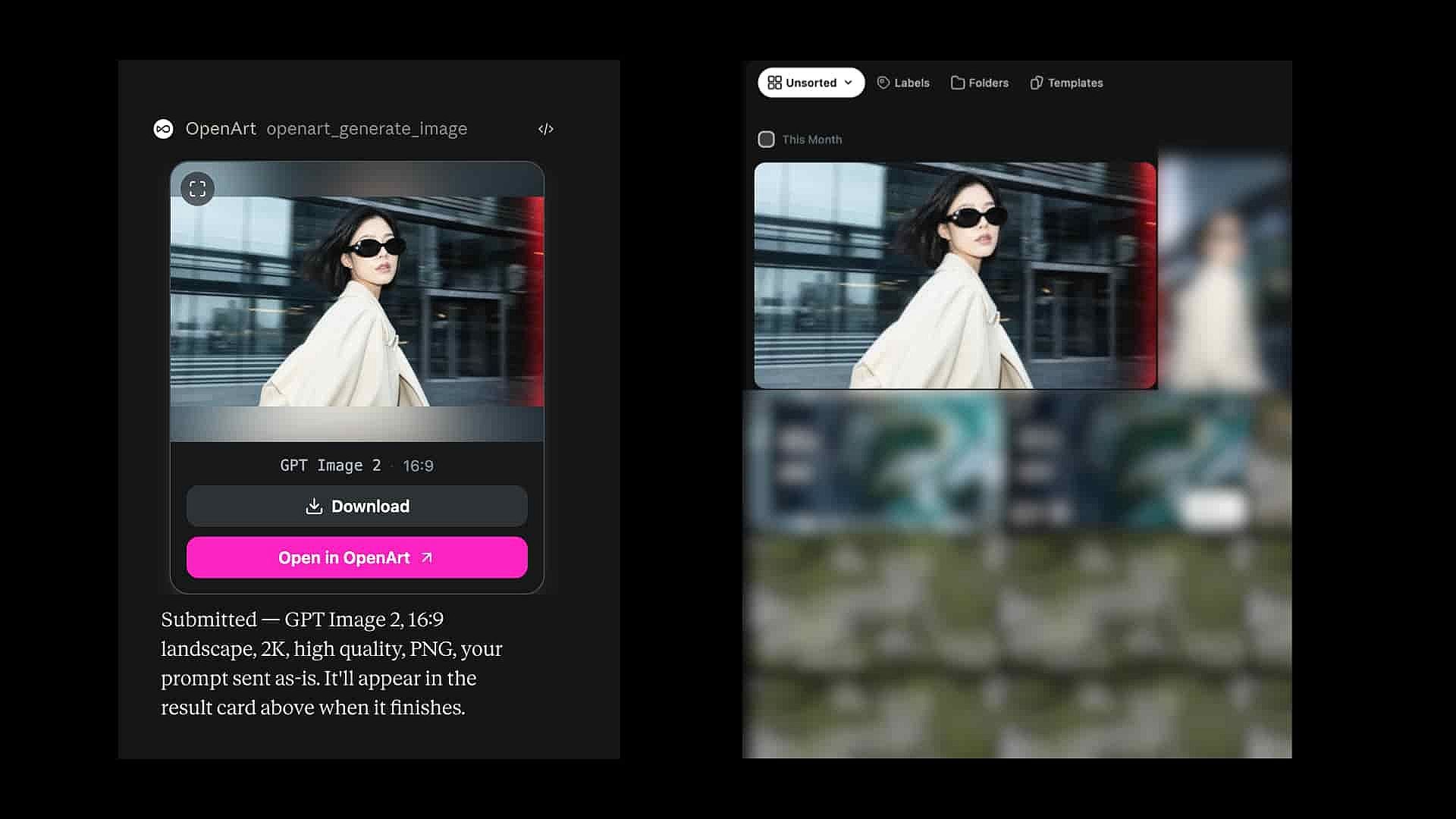
Every picture you make in Claude with OpenArt MCP is saved to your library, the same place the rest of your work lives. Open it on the website later, download it, or use it again as a reference picture for a new image, or for a video with the Claude AI video generator. Every image stays yours to reuse.
What You Can Make From a Claude Chat
Claude is already where a lot of work gets written and planned, so making the pictures in the same place saves you a round trip.
Agencies and Client Campaigns
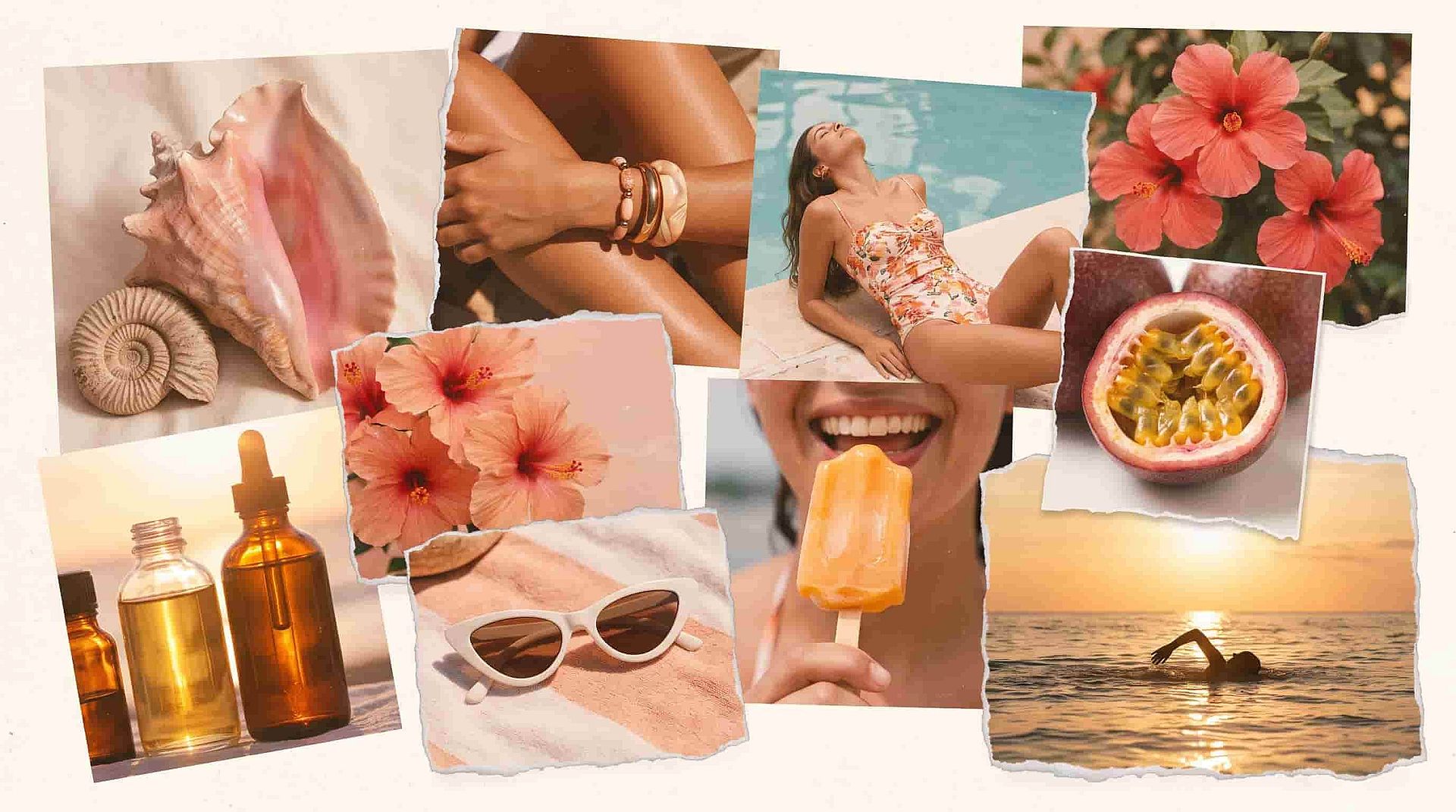
Upload a client mood board and ask Claude for campaign images in a few different looks. Every result comes back in the conversation and gets saved to your OpenArt library, so you can pull the winner up again next week when the client asks for changes.
Try it Now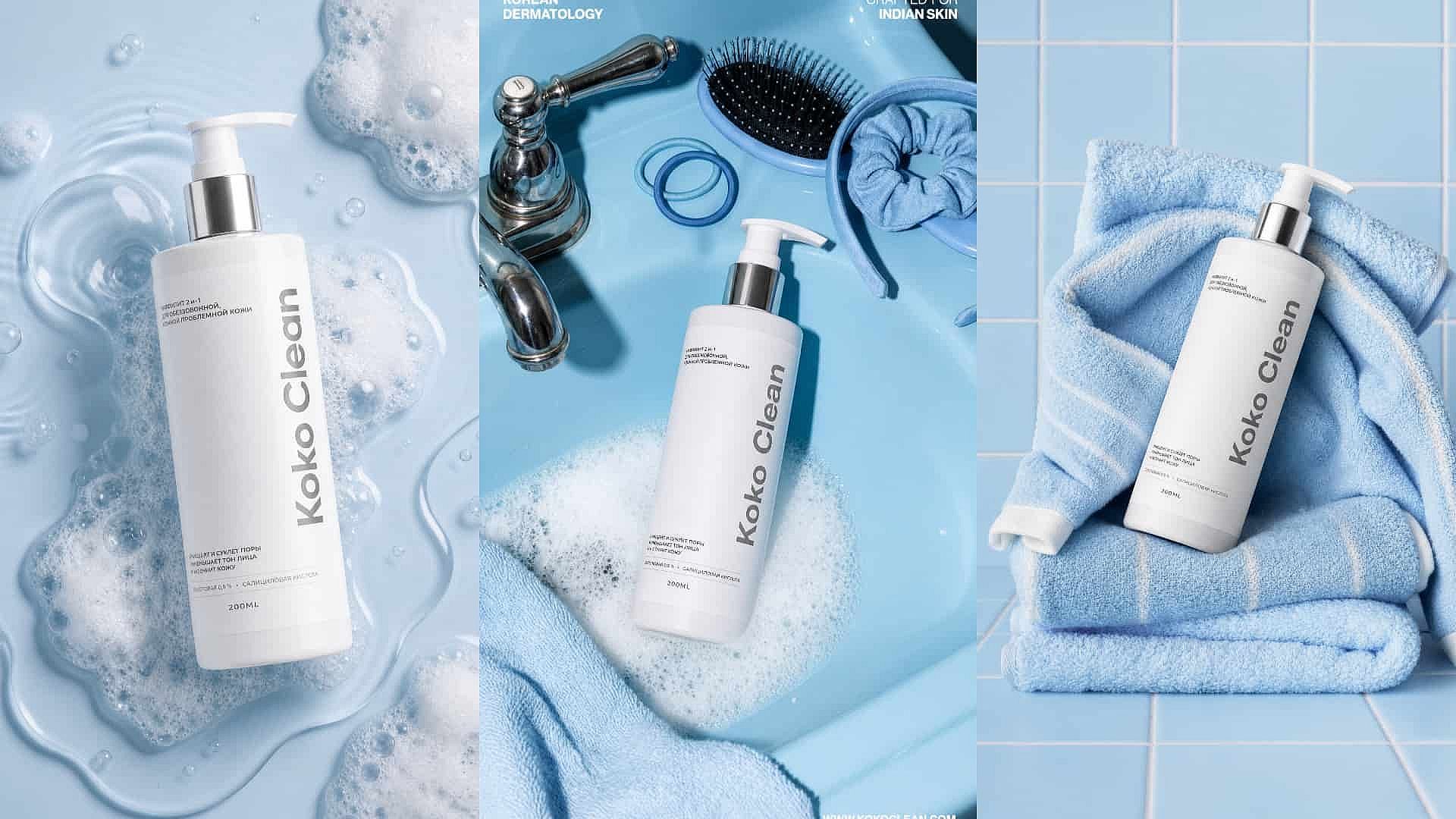
Online Stores and Product Photos
Turn one product photo into listing images or seasonal scenes without booking a shoot. Logos, colors, and the text on the label stay readable, which matters when the picture has to match the product a buyer actually receives. One prompt covers a whole set of sizes.
Try it Now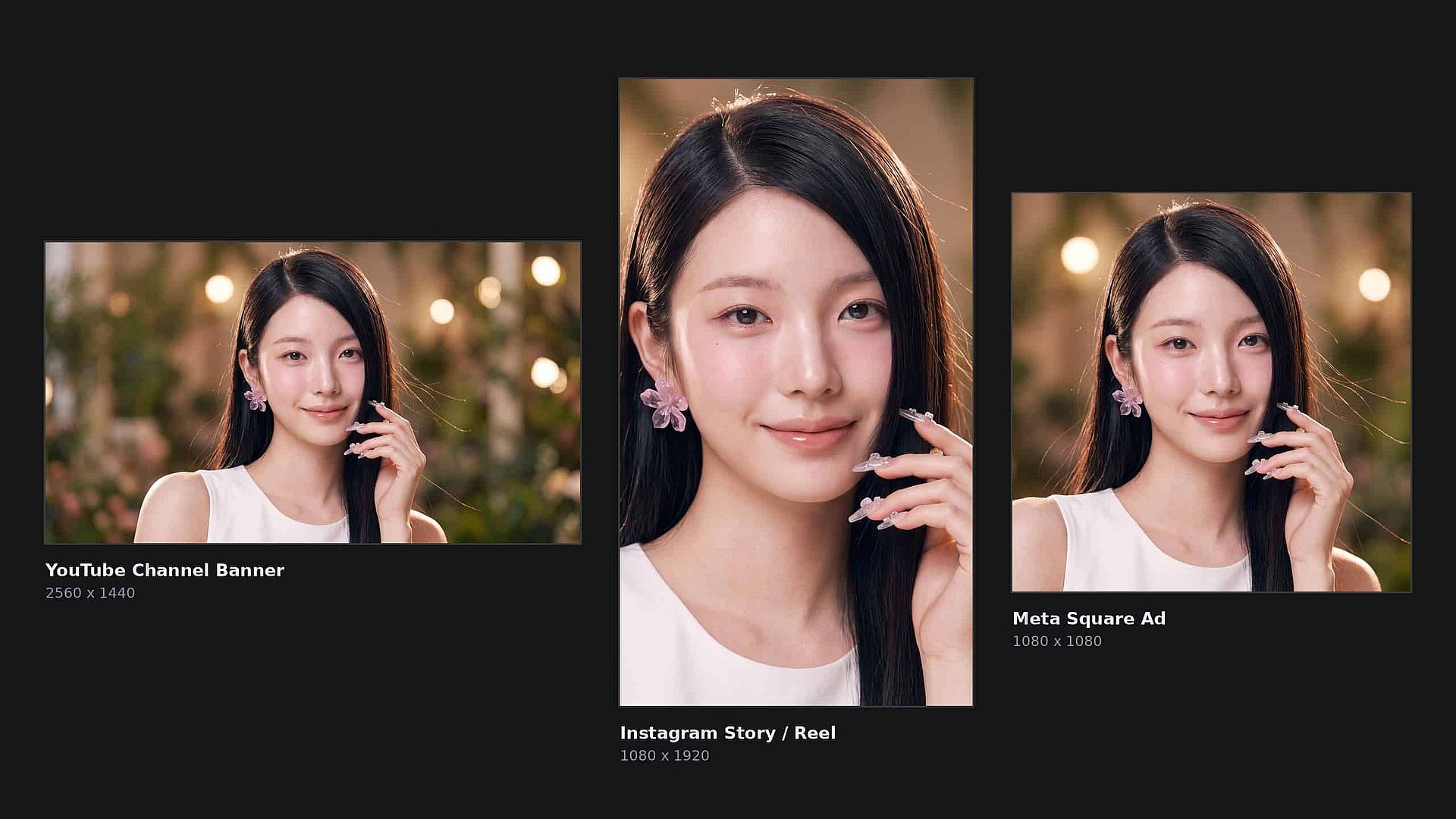
Social Media and Content Teams
Ask Claude for a new image at the exact shape each platform wants, then use the one you like best as the reference for the rest of the week's posts. Your feed ends up looking like one campaign instead of ten unrelated pictures, and you can build a reusable character on OpenArt to anchor the look.
Try it Now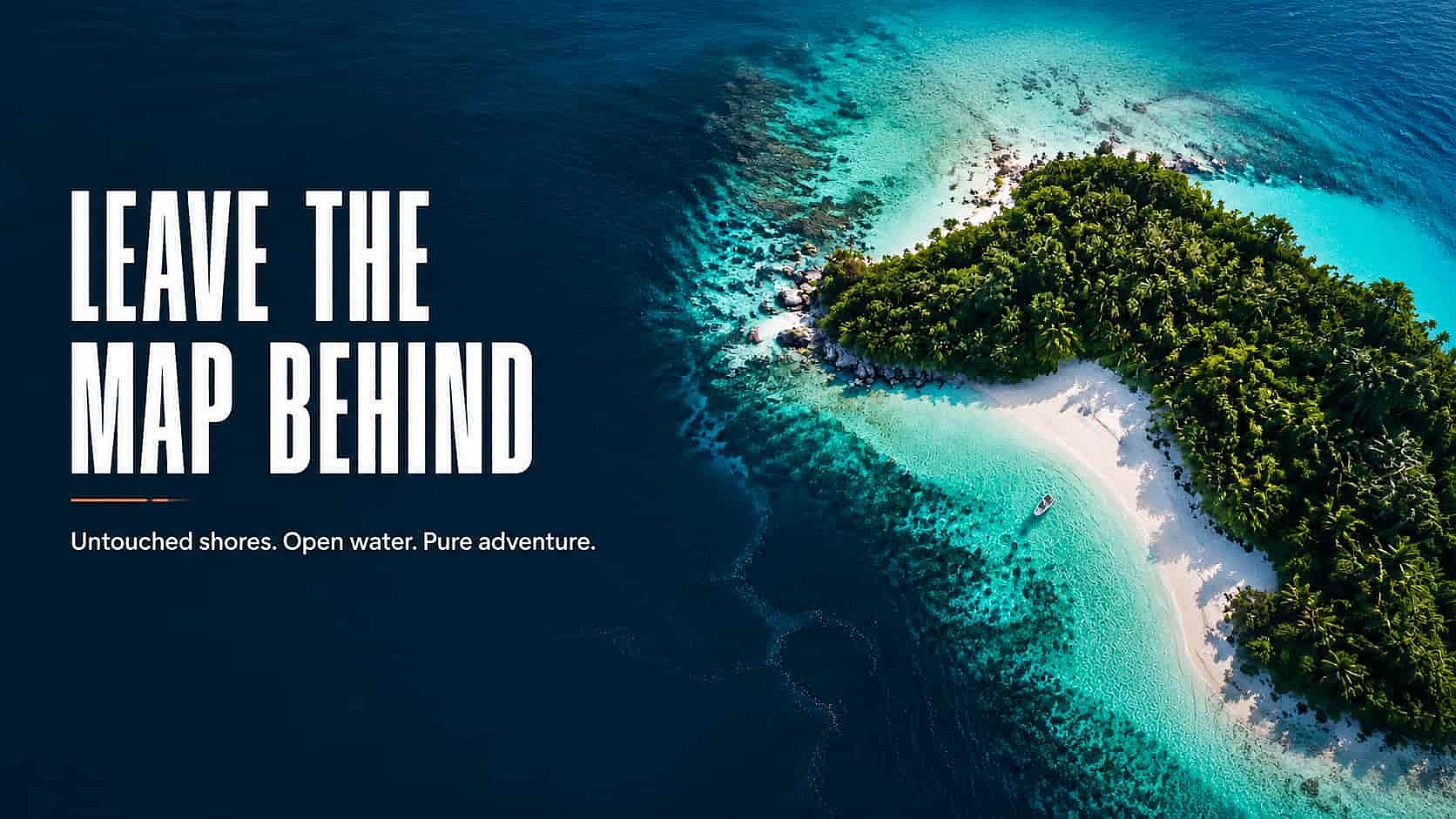
Blog Banners and Article Images
You are often already drafting the post in Claude, so ask for the header image in the same chat. Describe the idea from the article, look at a couple of options, and pick the one that matches your site. You get a custom header instead of a stock photo your competitors are also running.
Try it NowFrequently Asked Questions
Yes, once you connect OpenArt MCP. Claude brings the writing and the thinking, OpenArt brings the image models, and the finished picture lands in your chat.
OpenArt MCP has no extra cost. Images use the same credits as on openart.ai, and MCP is included on every plan from Starter up. New accounts get 40 free credits to try it out, no credit card required. See OpenArt pricing for plan details.
Yes. Upload the picture in your chat and say what to change. This covers background swaps, lighting changes, restyling, and new scenes.
OpenArt makes no ownership claim on the images you generate, and commercial use is allowed on Plus plans and above. Run the IP Safety Check first, since it flags risk but is not legal clearance.
OpenArt gives Claude a whole set of models to pick from on every request, plus a library that carries your images forward into later image and video work.
No. Signing in with your existing OpenArt account is the whole setup, and it takes about a minute.
GPT Image 2.5, Nano Banana 2 Lite, Seedream 5.0, Wan 2.7 Image and Grok Image 2.0. Name one yourself or let Claude choose.
Each image draws from your existing OpenArt credits, and the cost depends on the model and resolution. There is no separate bill for the connector.
Yes. OpenArt also works as a plugin in ChatGPT, see the ChatGPT video generator, and as an MCP server in Cursor, all drawing from one OpenArt account.
Create without limits
Join thousands of creators using OpenArt to generate stunning images, videos, and more — all in one platform.
Get Started for Free →