
 ChatGPT
 Perplexity
 Claude
 Gemini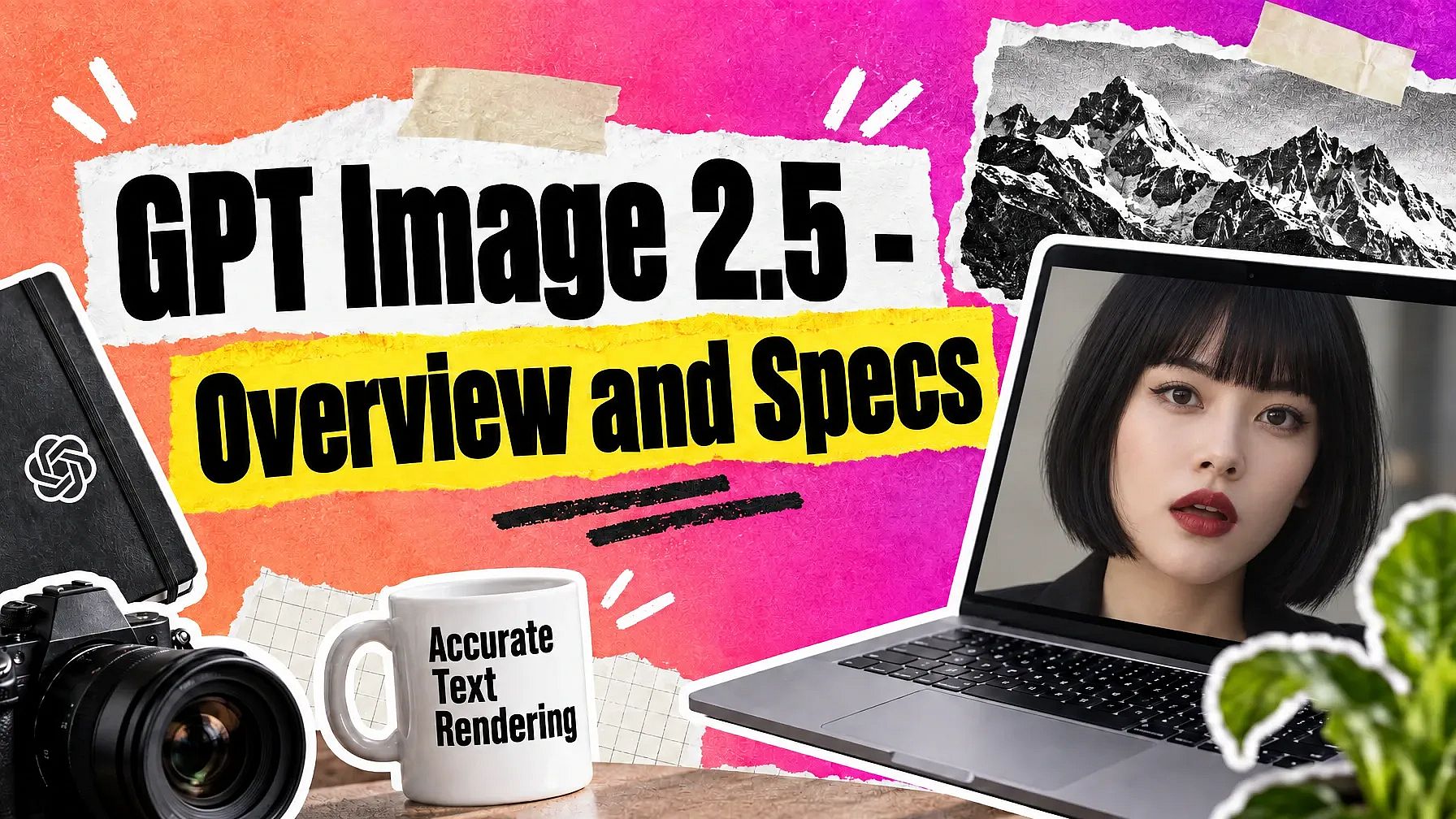
GPT Image 2.5 is OpenAI's image generation and editing model. It creates images from a written description, and it edits images you already have. It comes in two modes: Flare for fast everyday creation, and Sunburst for work that needs close attention to detail.
Here is a look at what the model does, one capability at a time.
Create images from a written description
This is the standard, most common text-to-image mode that all image generators have. Type what you want to see, and GPT Image 2.5 creates it. Your description can cover the subject, the setting, the lighting, the color palette, or the art style. A short line like "a ceramic coffee cup on a linen tablecloth, morning light" is enough to get a first image you can react to.
You can also hand the model an image and use it as a starting point. That works well when you already have a product photo, a sketch, or a piece of art that carries the look you want. The model reads both your words and your reference, then creates something new that follows both.
Edit an existing image by describing the change
GPT Image 2.5 also offers an image-to-image workflow. Generation and editing live in the same model. Upload an image, describe the change you want, and you get a new version back. You can ask for a different background, a new color, a change in lighting, or an added object.
This matters because most creative work happens after the first image. You look at what you made, decide what to fix, and describe the fix. GPT Image 2.5 treats that as part of the same job, so a revision takes one sentence.
Choose Flare for speed or Sunburst for detailed work
The two modes give you a choice based on the work in front of you.
Flare
This mode handles fast, high-quality everyday creation. OpenAI reports that Flare produces higher-quality images than GPT Image 2 while running with 50% lower latency. Reach for Flare when you are exploring ideas, making social artwork, or producing a batch of assets.
Sunburst
This second mode focuses on image quality and fine editing control, and it takes longer to render. Reach for Sunburst when the image needs to hold up under inspection: campaign visuals, product photography, a hero frame, or a revision where every detail counts.
A practical pattern is to explore with Flare and finish with Sunburst.
Keep the rest of the image the same while you change one part
When you ask for one change, GPT Image 2.5 aims to make that precise change and leave everything else alone. OpenAI describes the model as better at editing only what you asked for while keeping the rest of the details the same.
That gives you a reliable way to work through feedback. If a reviewer wants the sky warmer, you can warm the sky and keep the product, the composition, and the lighting on the subject as they were. The image you approved stays the image you approved.
Make several changes in a row without losing the earlier ones
Real revisions come in sequence, and GPT Image 2.5's multi-turn editing consistency handles that very well. You change the background, then the lighting, then a small detail on the label. The model follows editing instructions more reliably across multiple turns, so each new change builds on the version before it.
This turns a single image into something you can further develop. You can make five decisions in five messages and still maintain the coherence of the picture you started with.
Generate images with a transparent background
GPT Image 2.5 creates images with a native transparent background in both modes. You get an asset with a real alpha channel, saved as a PNG or a WebP file. These file formats are all supported for download.
That makes the output ready to drop into something else: a poster layout, an ad, a slide, a product page, or a video composition. Instead of describing a full scene every time, you can generate the object on its own and place it wherever you need it. When you are checking a transparent asset, open the file and look at the alpha channel, since a checkerboard on screen is not proof on its own.
Keep the subject from your reference photo recognizable
Reference images work better in this version. OpenAI reports that GPT Image 2.5 is better at preserving the subjects in your reference photos, including the features that make them distinctive.
For product and ecommerce work, that means the shape, materials, and color of your item survive the trip into a new scene. For character and portrait work, it means the face you uploaded still reads as the same person. Always inspect the result before commercial use, especially labels, logos, and fine geometry.
Get text, charts, and labels rendered accurately
GPT Image 2.5 renders real-world information more accurately, including text inside the image. Words on a sign, a label on a bottle, a heading on a poster, and the parts of a simple chart or diagram come out closer to what you asked for.
That opens up work that used to need a design pass afterward: a quote card, a mock packaging label, a titled poster, a thumbnail with a few words on it. Read the text in the output before you publish it, then fix anything that came out wrong with a follow-up edit.
Technical specs table
These are the model-level specifications OpenAI has published for GPT Image 2.5. What you see in any given app, such as on OpenArt, depends on the controls that app or platform chooses to offer.
| Specification | Detail |
|---|---|
| Release date | September 8, 2026 |
| Model names | GPT Image 2.5 Flare and GPT Image 2.5 Sunburst |
| Model IDs | gpt-image-2.5-flare and gpt-image-2.5-sunburst |
| Inputs | Text and images |
| Output | Images |
| Maximum resolution | 3840 x 2160 |
| Standard sizes | 1024 x 1024, 1536 x 1024, 1024 x 1536 |
| Size rules | Width and height each divisible by 16 |
| Aspect ratio range | 1:3 to 3:1 |
| Images per request | Up to 10 |
| File formats | PNG, JPEG, and WebP, with adjustable compression |
| Transparent background | Supported, saved as PNG or WebP |
| Quality settings | Low, medium, high, xhigh, and max, plus an automatic setting |
| Area-specific editing | Supported, by marking the region to replace |
| Progressive previews | Up to 3 partial images while the final image renders |
| Speed | Flare is very fast; Sunburst is medium |
| Not supported | Fine-tuning, function calling, and structured outputs |
Getting started
The short version: describe what you want, look at what it generates, and describe the next iteration. Download when you are done. Pick Flare when you want to move quickly through ideas, and pick Sunburst when the image needs to be rich and detailed.
GPT Image 2.5 is even better on OpenArt's AI image generator thanks to our added features. Both Flare and Sunburst modes are available with a variety of customization options such as Brand Kit, referencing saved Characters, and configuring the exact resolution, aspect ratio, and number of generations per prompt.
Let's get creative!