
Add a Santa Hat to Photo
Give your favorite photo a Christmas update. Upload a portrait, pet picture, or profile photo to Edit Image and describe the Santa hat you want. Starting without a photo? Use Create Image to generate a new Christmas picture from text.
 Add an image Or drag and drop here · JPEG, PNG, WEBP, HEICJPEG, PNG, WEBP, HEIC
Why Add a Santa Hat With OpenArt?
Add a Hat With a Written Instruction
Upload your photo to the AI photo editor and describe where the hat should sit. Ask to keep the original face, expression, and background unchanged. Review the result before saving.
Describe Your Christmas Hat
Ask for red velvet, a knitted cap, or a white pom-pom falling to one side. Specify the material and tilt instead of searching for a Santa hat image that happens to fit your photo.
Keep Your Profile Recognizable
Start with the portrait your followers already know. Add a seasonal detail for your December posts or community profile, then compare the result with your usual avatar before switching.
Use a Pet Photo You Already Love
No need to persuade your dog to wear a costume. Start with a clear photo and describe a small hat between the ears. Ask to keep the eyes visible and the fur markings unchanged.
Match the Hat to the Photo
A straight-on hat can look wrong on a tilted head. Describe the head angle, light direction, and a soft shadow under the brim. Ask for a smaller hat if the pom-pom reaches beyond the picture.
Edit a Photo or Create a New Image
Use Edit Image to add a hat to an existing photo. If you do not have a starting picture, use Create Image , and describe a person, pet, or character wearing a Santa hat. You can also add visual references there.
How to Add a Santa Hat to a Photo
Make your Christmas photo in three simple steps.
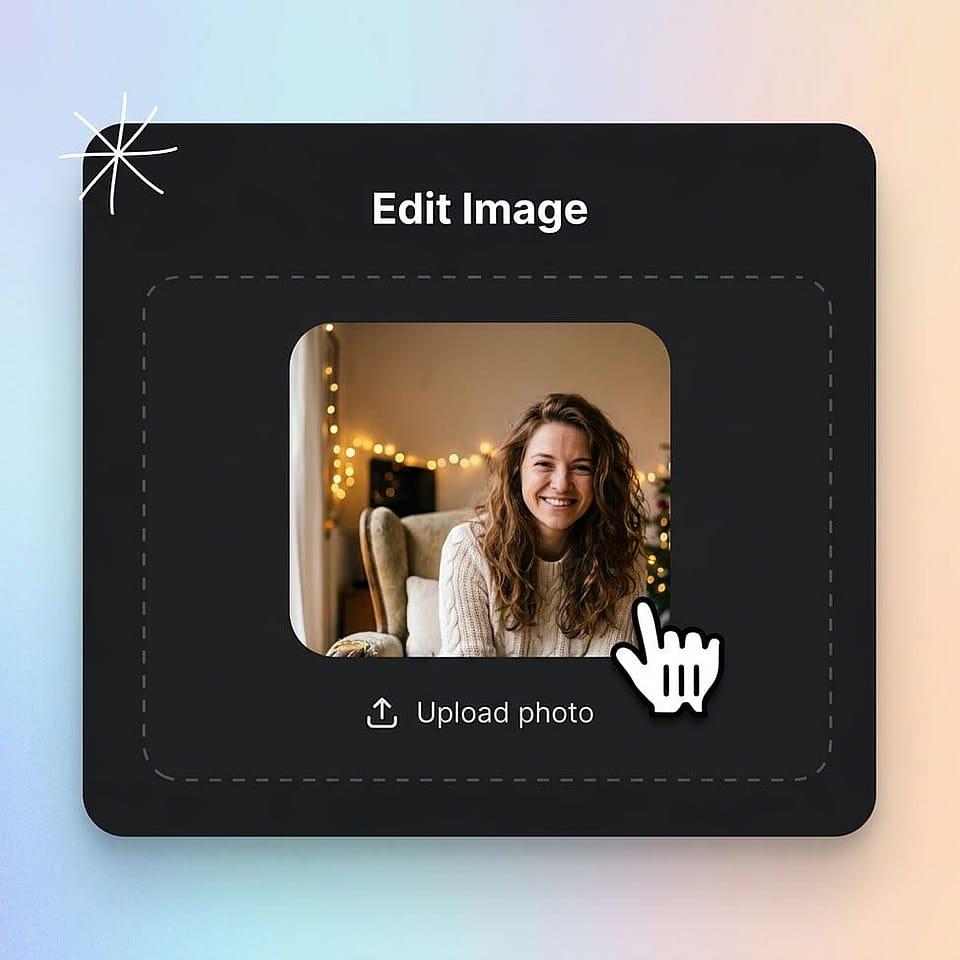
Upload or Describe Your Image
Upload a photo to Edit Image, or describe a new picture in Create Image.
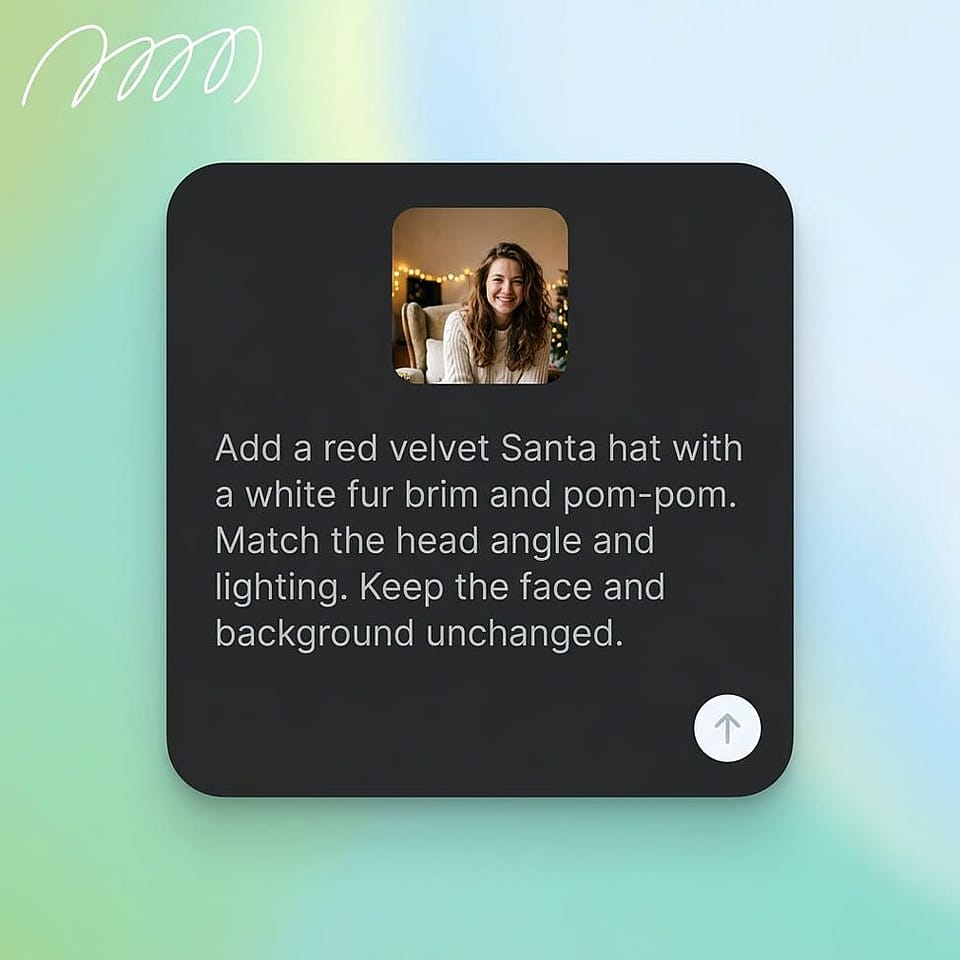
Describe Your Santa Hat
Specify the hat’s style and position, and describe any details you want to keep unchanged.
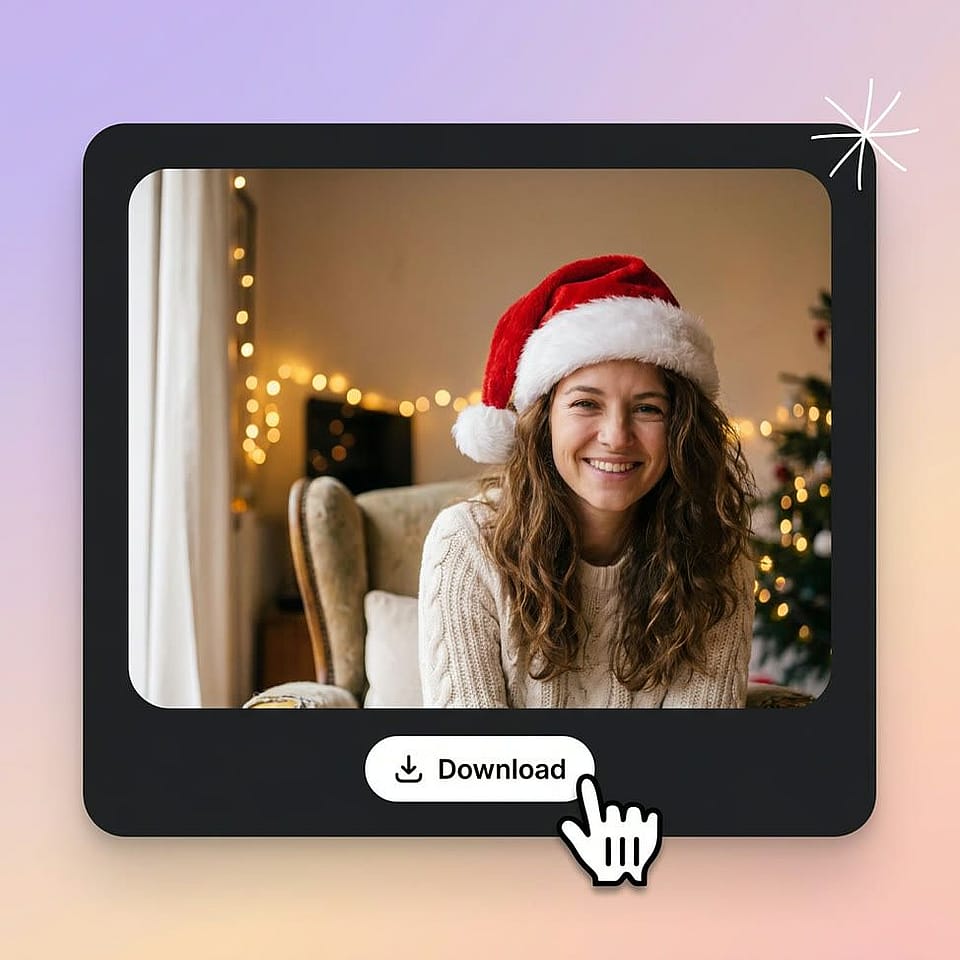
Generate and Download
Generate your image, check the hat and facial details, then download your favorite result.
What Will You Put a Santa Hat On?
Create Christmas profile pictures, festive pet photos, and holiday cards.
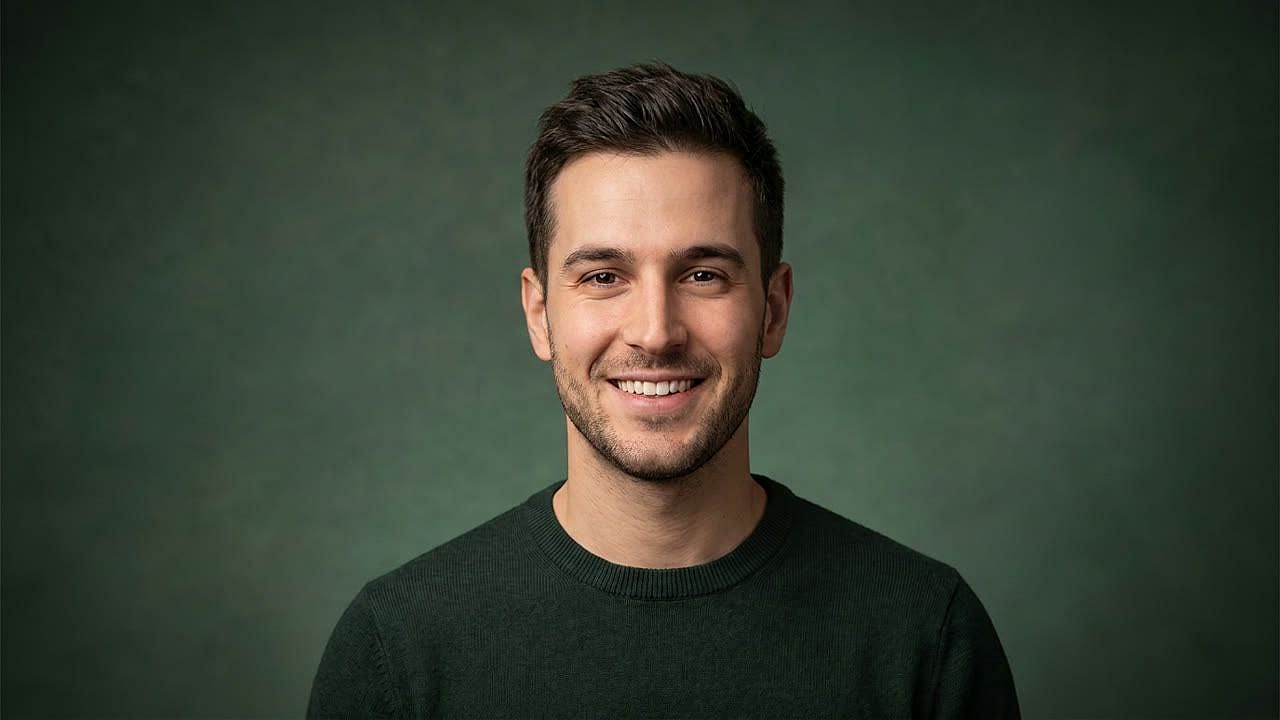
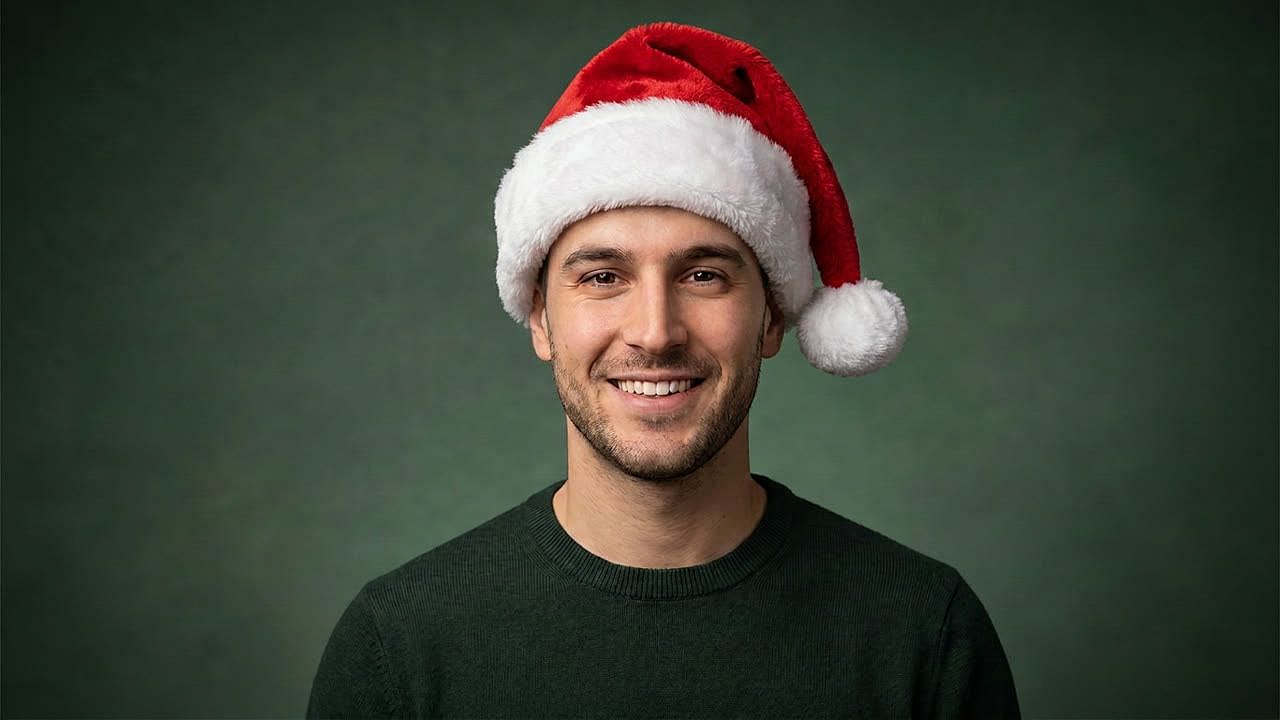
Create a Santa Hat PFP
Add a Santa hat to your profile picture for Instagram, TikTok, or Discord. Give your familiar avatar a Christmas look.
Try it Now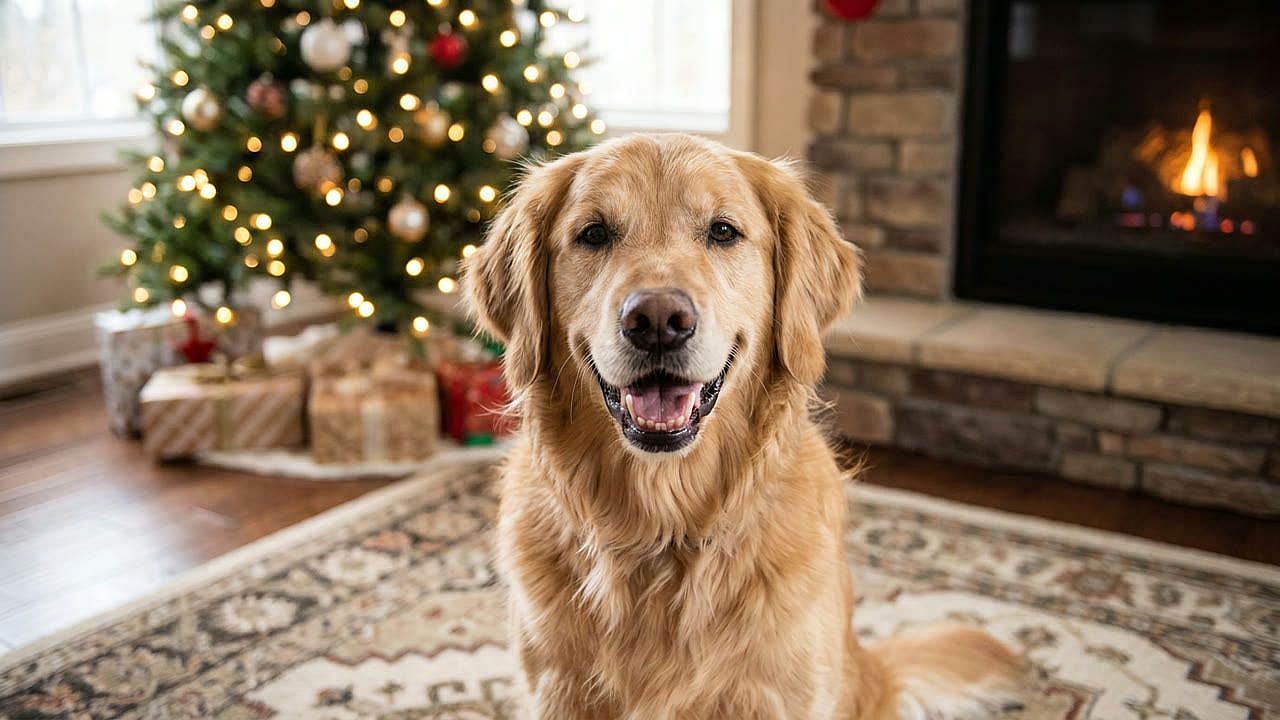
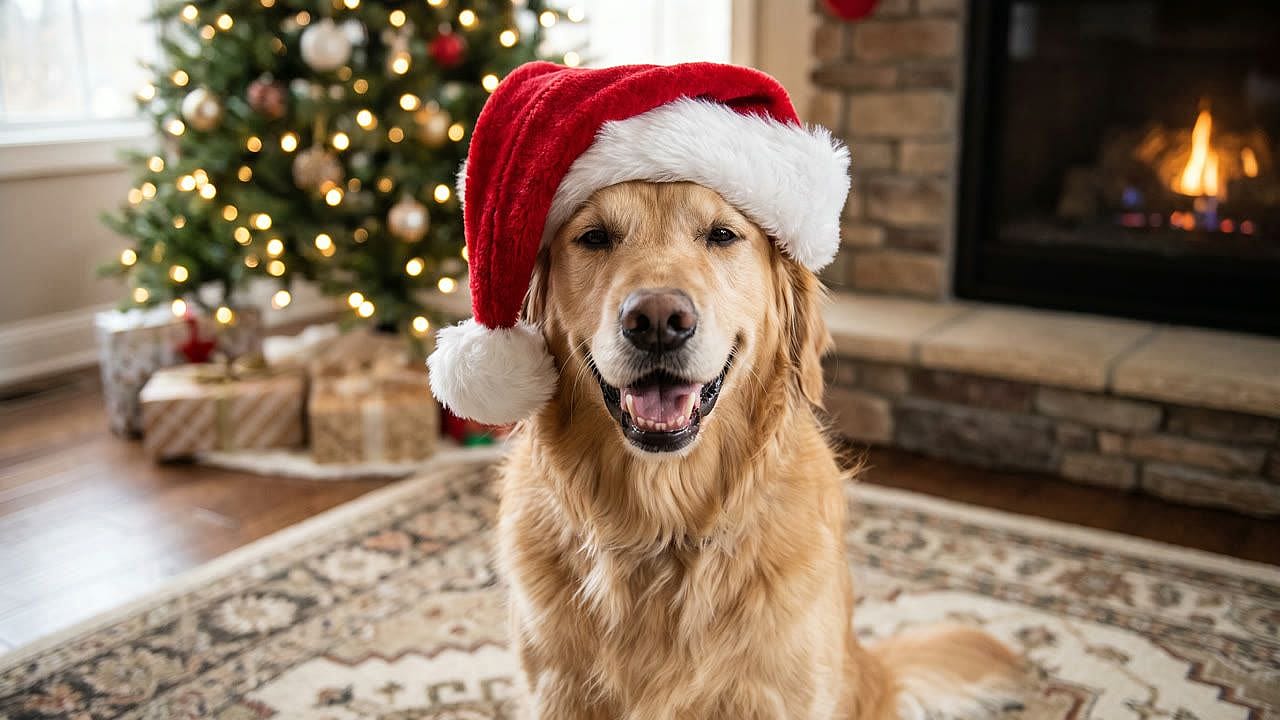
Add a Santa Hat to Your Dog or Cat
Turn your favorite dog or cat photo into a festive portrait. Share it on your pet’s account or send it as a holiday greeting.
Try it Now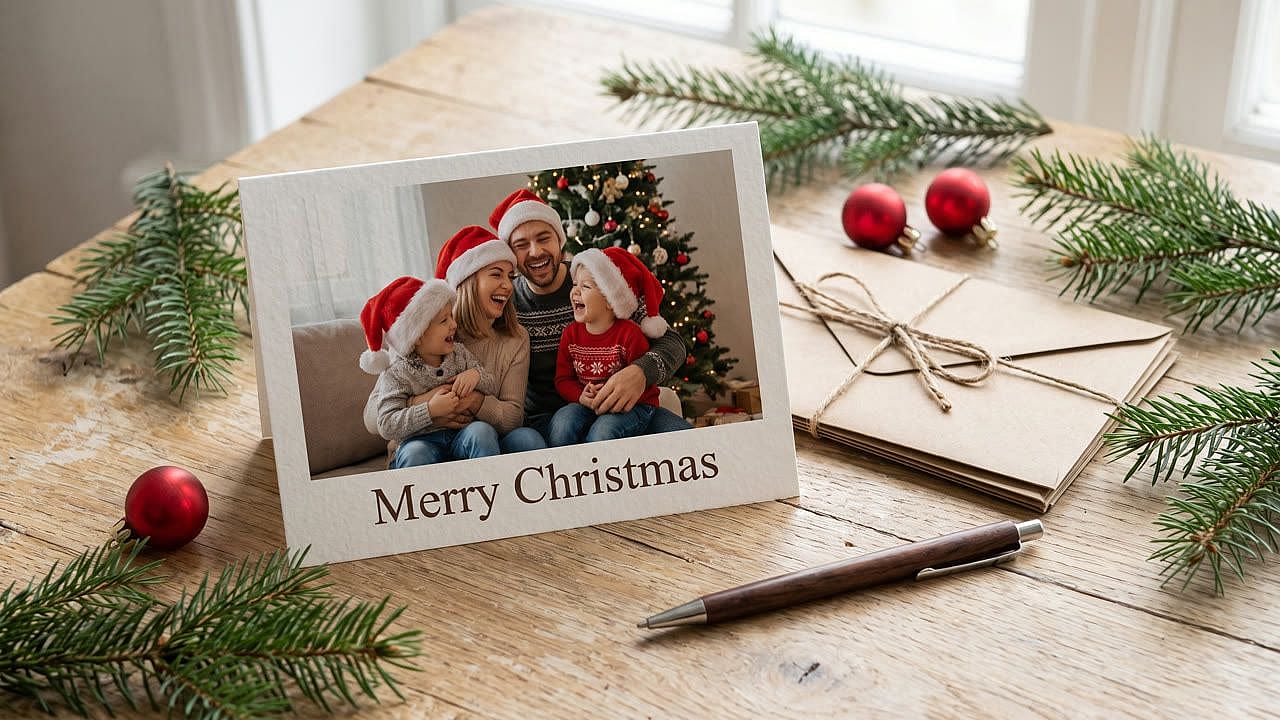
Make a Christmas Card Photo
Add Santa hats to a family or couple photo for your Christmas cards. Use the edited picture in a digital greeting or printed card.
Try it NowExplore AI Models for Your Next Creative Project
Browse models for future image and video projects. For a Santa hat photo, start in Edit Image; for a new Christmas illustration, start in Create Image. Available controls and credit costs depend on the selected model and workflow.
Frequently Asked Questions
Open Edit Image, upload your photo, and describe the Santa hat you want to add. Specify the person or pet, the hat style, and the details to keep unchanged. Generate a result, compare it with the original, and download it. Use Create Image if you want a new Christmas picture from a text description.
Open Edit Image in your iPhone’s browser, sign in, and upload your photo. Describe the hat and ask to keep the original face and background unchanged. Generate the edit and check the result before saving. New-user trial credits follow the same limits on mobile.
No. You can describe the hat in Edit Image when working from a photo, or in Create Image when generating a new picture. A transparent Santa hat PNG is useful when you already have an exact sticker design. In a layer-based editor, you position and resize that graphic yourself, then adjust shadows if needed. Choose based on whether you want to generate a hat or place a specific existing image.
New OpenArt users can start with free trial credits. AI edits consume credits, so the trial does not provide unlimited free editing. Check the credit requirement displayed in the editor before generating, and see the current plan options if you need more.
AI results can vary. Ask to preserve the original expression, hairstyle, and fur markings, and to change only the hat. Compare the result with your source photo. If an unwanted detail changes, return to the original and make the instruction more specific before generating again.
Match the hat to the head’s angle and the photo’s light direction. Ask for a soft shadow where the brim meets the hair. Check the image at full size for rough edges, then preview it in a circular crop. If the pom-pom is clipped, choose a smaller hat or leave more room above the head.
More Ideas for Your Christmas Images
Find prompts for Christmas trees, winter scenes, and holiday illustrations to pair with your edited photo. Choose a background or decoration that leaves the person as the focus.
Explore Christmas Prompts