
AI Infographic Generator
Turn your ideas into shareable visuals with OpenArt’s AI Infographic Generator. Describe your key points, choose a style, and create an infographic for LinkedIn, your blog, or your next presentation. No template hunting or design skills needed.
Key Feature of the AI Infographic Generator
Generate a Complete Layout From One Prompt
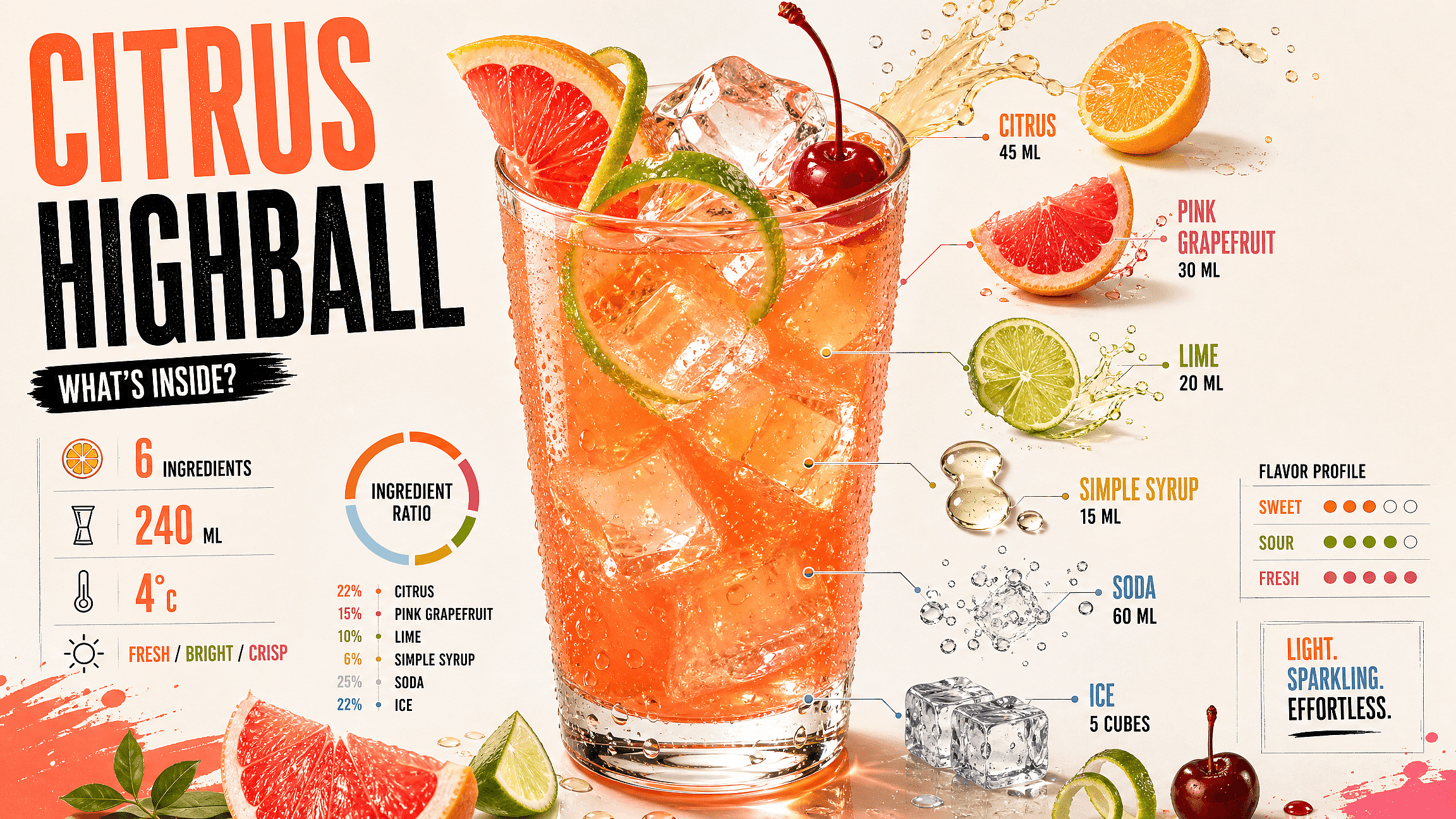
Describe your topic, key points, and preferred tone. Our AI Infographic Generator brings icons, labels, and content together in a complete layout. Specify headings and section order in your prompt for more control.
Create Infographics With Readable Text
Use models such as Qwen Image 3.0 and GPT Image 2 to create infographics with headlines, labels, and supporting text. Include the wording you want in your prompt to guide the result. Before sharing, review every label and number to make sure your graphic communicates the right information.
Explore Visual Styles With a Prompt
Choose flat illustration, isometric, hand-drawn, or editorial styles to match your message. Have a reference you like? Use image to prompt to describe its visual style, then adapt the wording for your infographic. Explore different looks for social posts or client presentations by adjusting your prompt.
Expand Your Graphic for Different Platforms
Use the AI image extender to expand an existing graphic into a taller Pinterest pin or a wider blog banner. Add space around your composition to suit a different format. Adapt one visual for more placements without rebuilding the entire design each time you share it.
Refine Individual Elements With Targeted Edits
Need to adjust a label or replace an icon? Use the AI image editor to mark the area and describe the change. Refine individual parts of your infographic as you review it, then check the result to make sure the updated element fits the surrounding layout.
Create Infographics for Different Languages
Create versions of your infographic for audiences who speak different languages. Specify your target language and provide the translated wording in your prompt to guide generation. Review the text and layout in each version before publishing, especially when switching between left-to-right and right-to-left scripts such as Arabic.
How to Use the AI Infographic Maker
From Prompt to Shareable Graphic in Three Steps
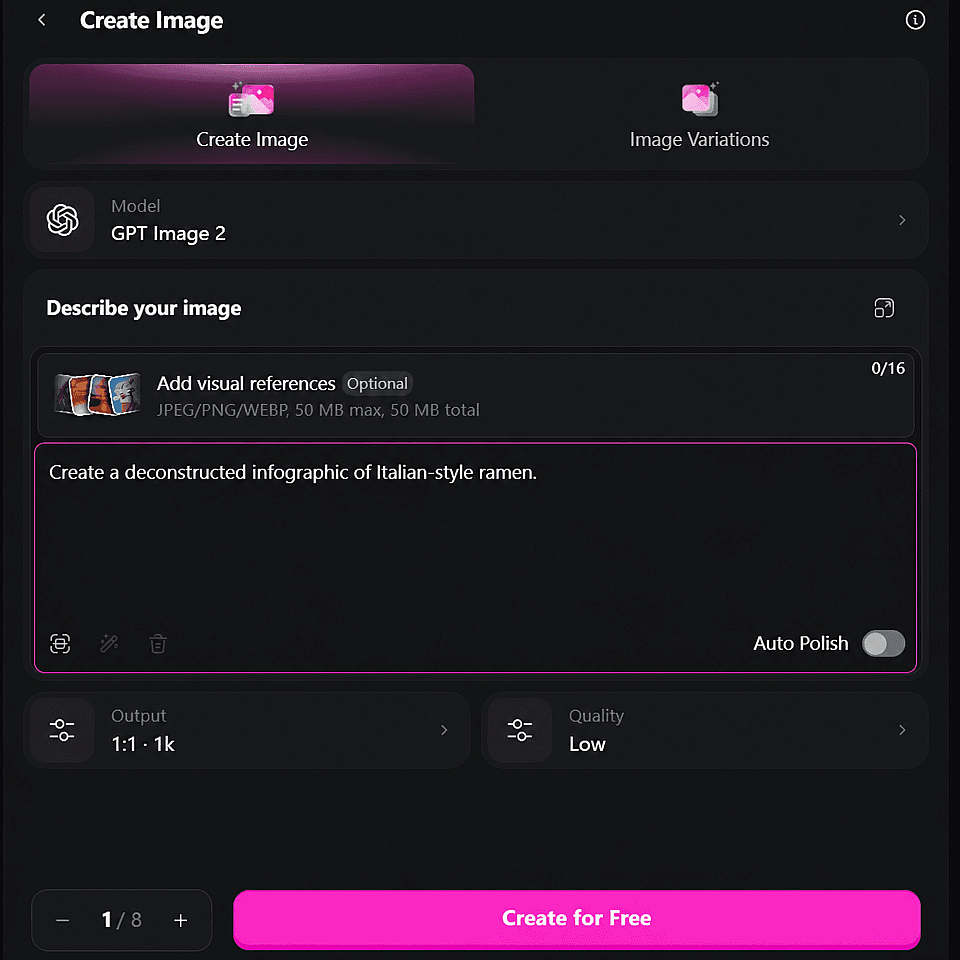
Write the prompt
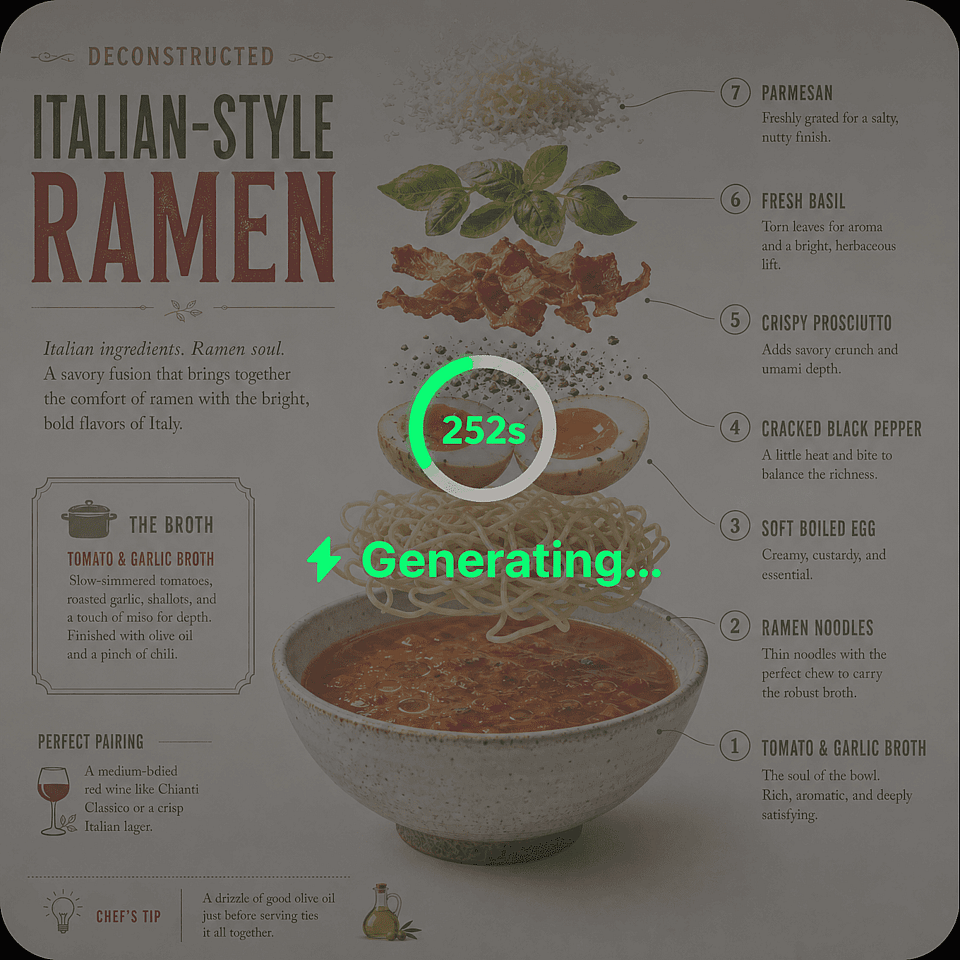
Name your topic, list the points or stats you want shown, and describe the visual style (flat illustration, corporate clean, hand-drawn, etc). Pick Qwen Image 3.0 or GPT Image 2 from the model list for graphics with more than a couple of words of text.
Generate and refine
Run the prompt and review the result. Use the built-in editing tools to fix a label, swap a color, or adjust an icon without regenerating the whole graphic.
Resize and export
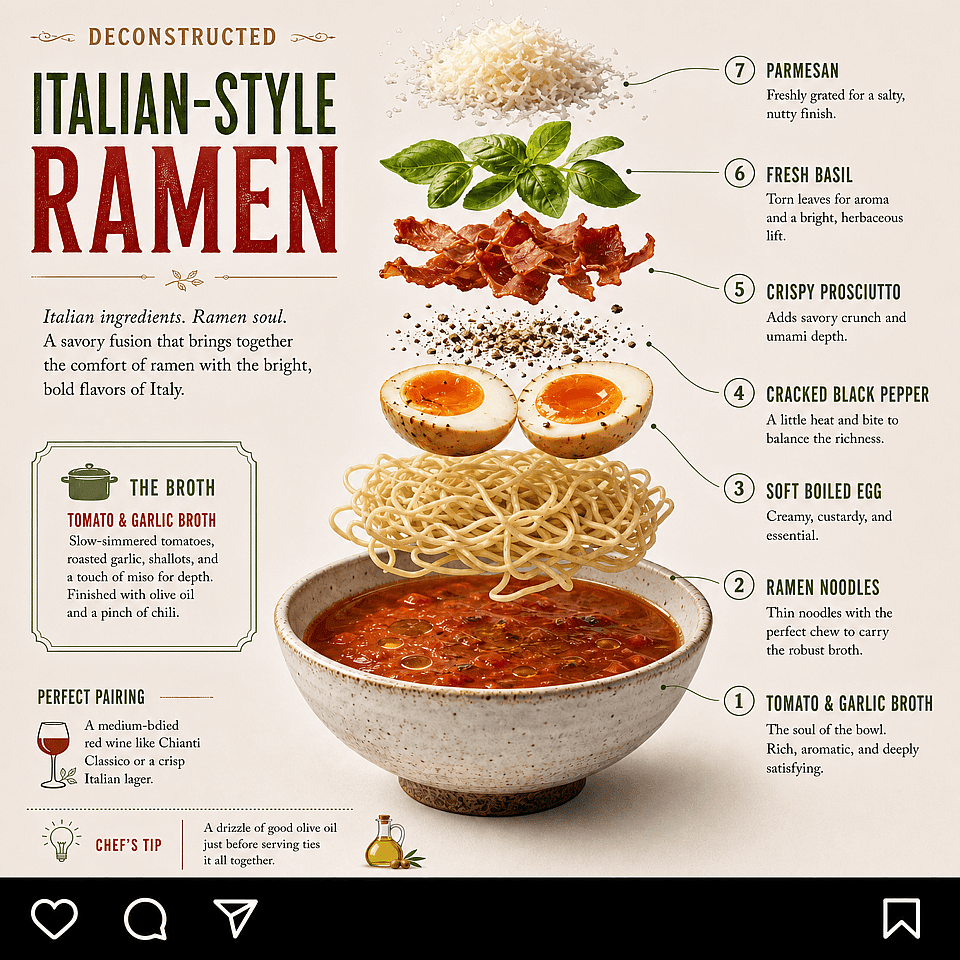
Use the AI Image Extender to fit the graphic to the platform you're posting on, then download at up to 4K.
What You Can Make With Infographic AI
OpenArt's infographic-style generation covers the visual side of communicating an idea quickly. Here's where it fits.
Social Media Carousels
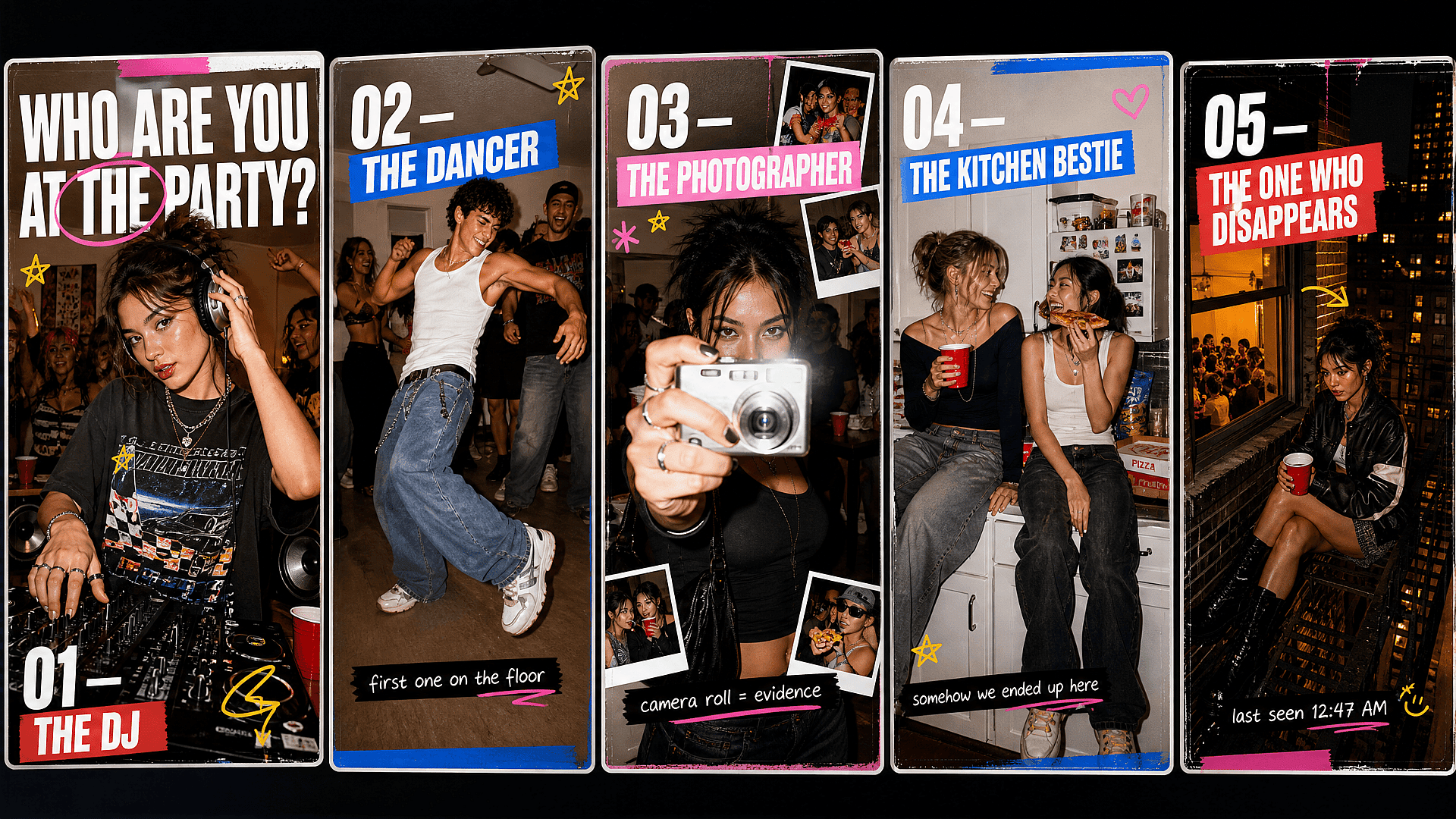
Create LinkedIn stat callouts, Instagram carousel slides, and Pinterest tip graphics that make your ideas easy to scan and share. Start with a prompt, or use image to image to adapt an existing visual’s colors and style for your next post while keeping its composition as a reference.
Try it Now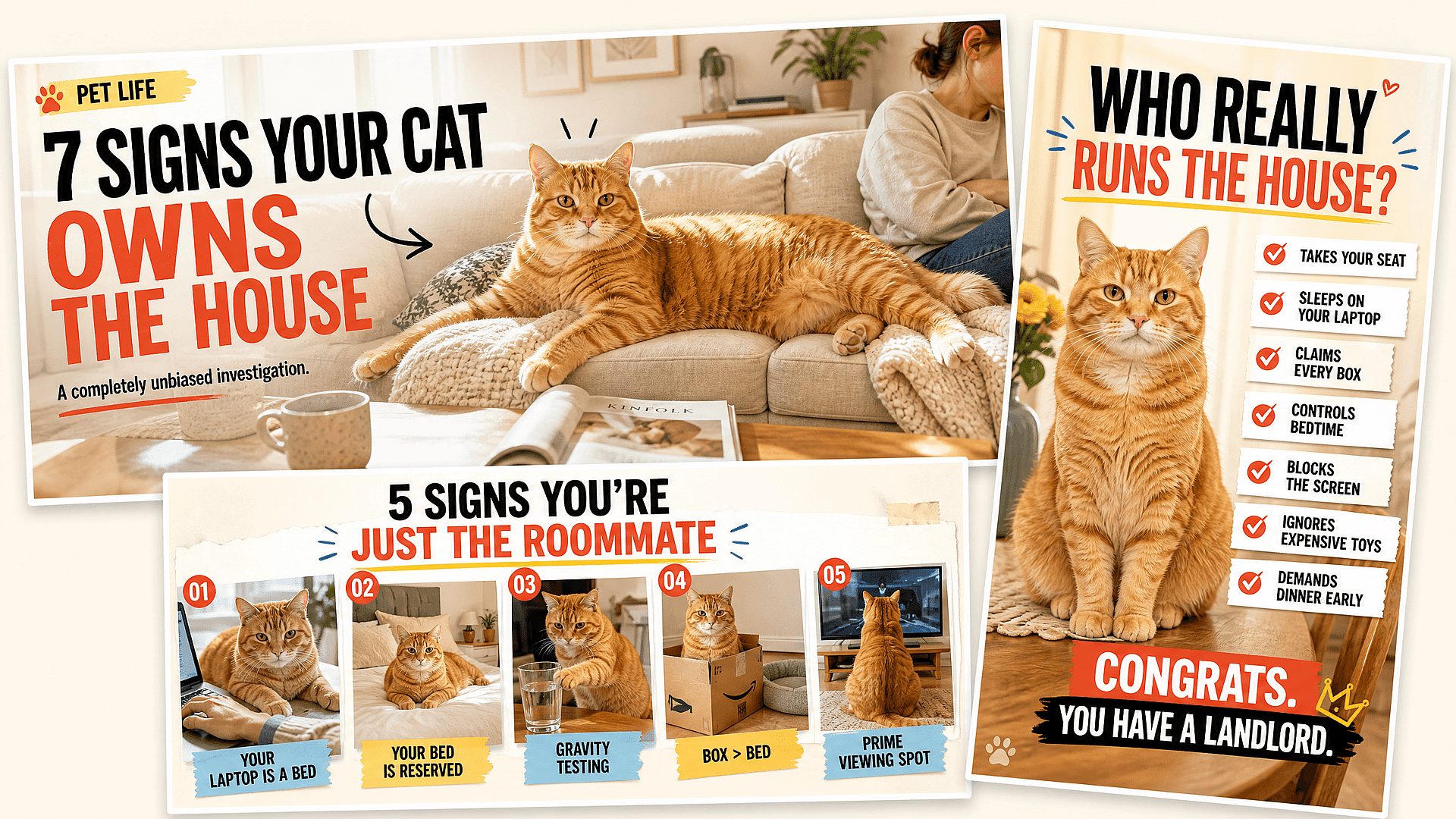
Blog and SEO Content Graphics
Header images, in-article "5 tips" graphics, and shareable summary images that give a blog post something worth pinning or re-sharing. Built with the AI text to image generator and, for full-page layouts, the AI poster maker.
Try it Now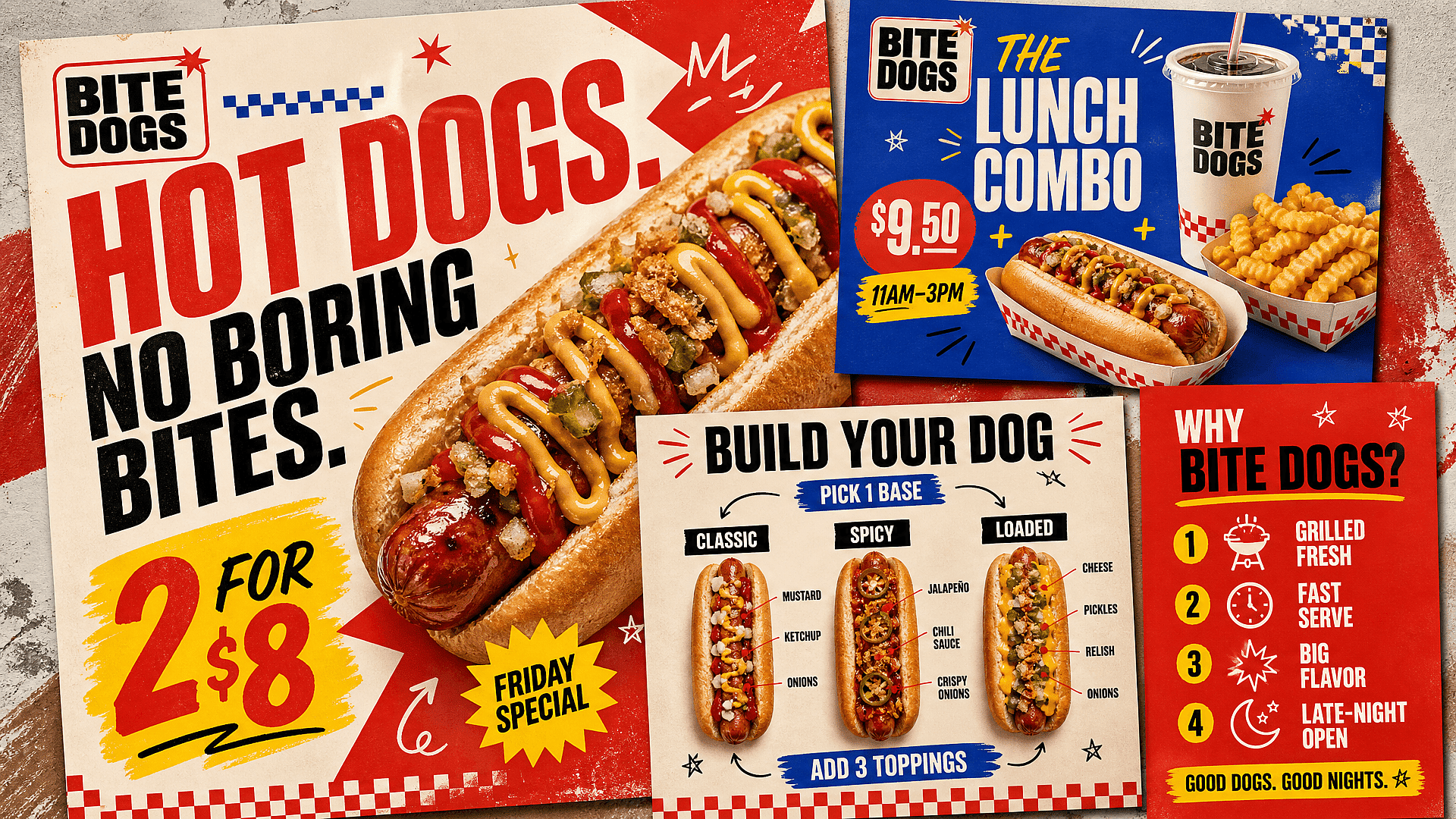
Marketing and Promo Graphics
Product comparison snapshots, "why choose us" graphics, and promo cards for a small business that doesn't have a design hire. The AI Poster Maker covers the same job when the output is closer to a flyer or ad than a listicle graphic. If every graphic needs to match the same logo, colors, and fonts, the AI brand kit keeps that consistent across a whole batch.
Try it Now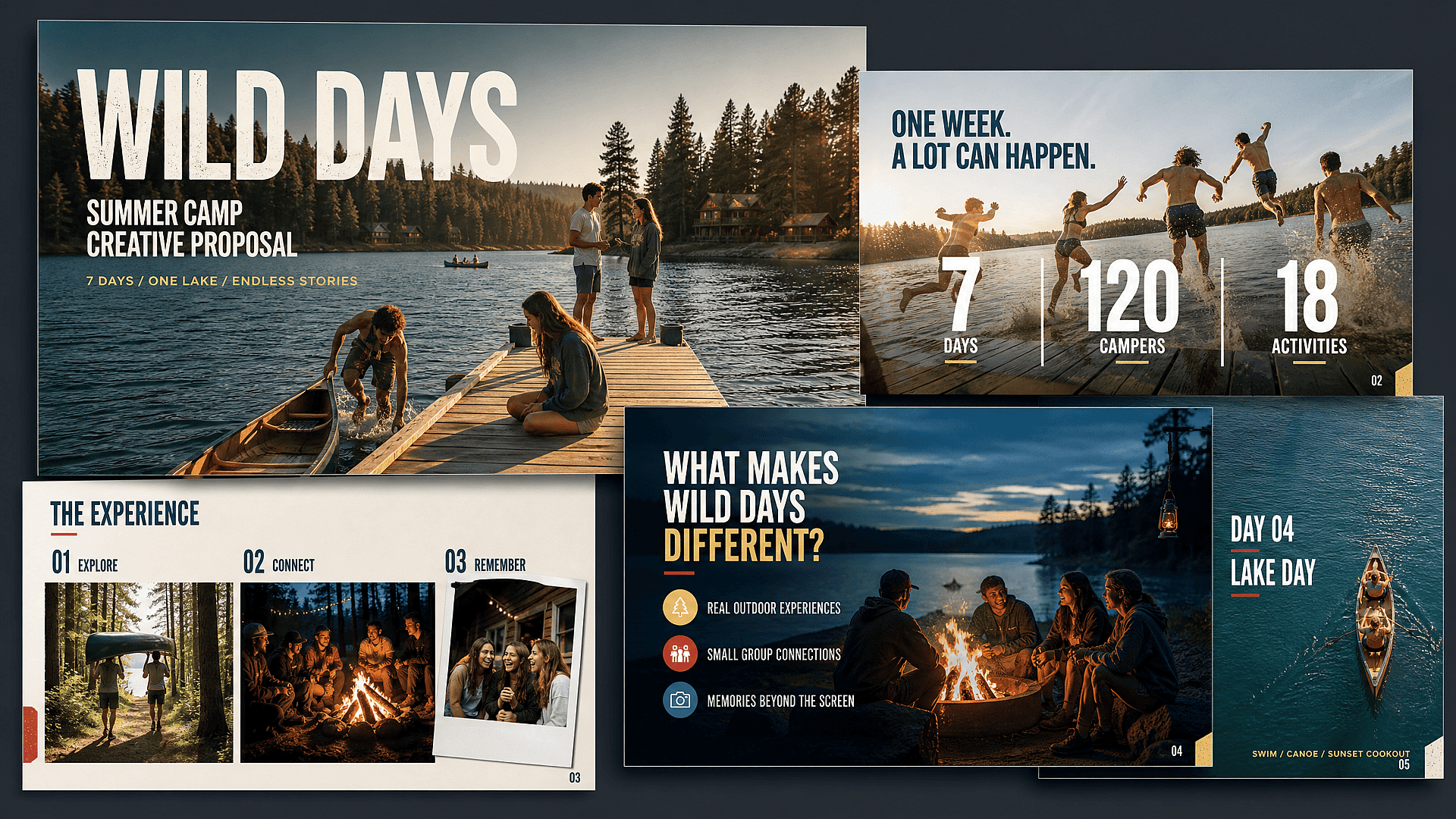
Presentation and Deck Visuals
Use text to image to describe your message and visual style, then add the finished graphic to a pitch deck or internal update to give your audience a clear focal point.
Try it Now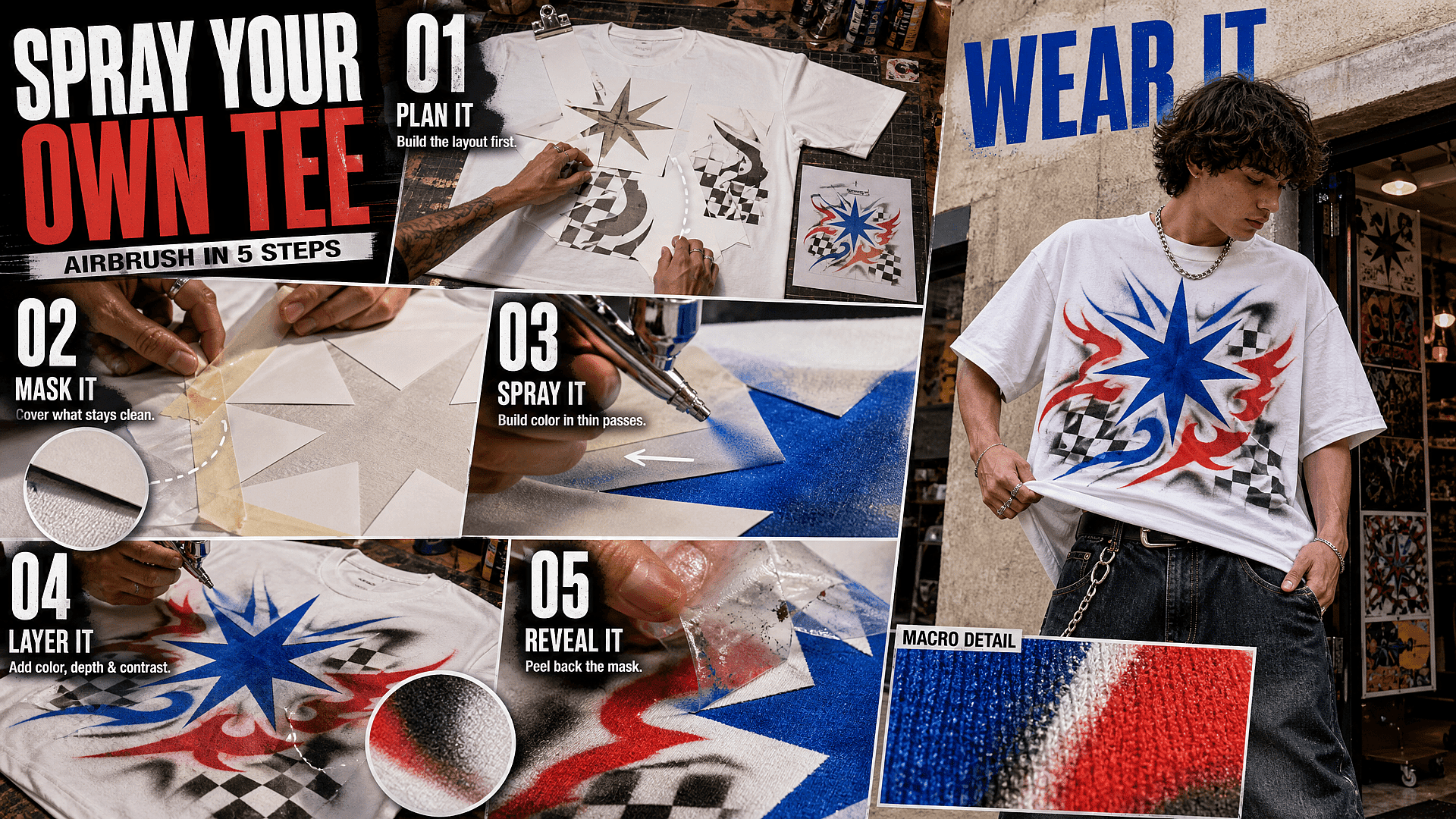
Educational and How-To Visuals
Step-by-step process graphics, simple explainer visuals for a course or a newsletter, generated with models like Qwen Image 3.0 for readable labels.
Try it NowExplore the Latest AI Image and Video Models
These are the models powering everything you can create on OpenArt, from a single image to a full video.
Frequently Asked Questions
You can generate a strong cover graphic, section-break visual, or summary image to make the report look more finished. That's a common use of the generator. What it won't do is plot your exact survey numbers into an accurate chart. If the deliverable needs the data itself charted precisely, pair OpenArt's visuals with a dedicated data-visualization tool for that part.
Yes, in the sense that you describe the graphic in a prompt and the model generates the full visual, layout and all, in one pass. It's not pulling structured data from the text you paste in; it's interpreting your description.
It depends on how much text is on the graphic. For anything with more than a few words of copy, models like Qwen Image 3.0 or GPT Image 2 hold up better. General-purpose image models can garble small text.
Whatever you can describe: flat illustration, isometric, hand-drawn, corporate-clean, editorial, and more. Style is a prompt choice, not a template pick.
Yes. New OpenArt accounts get 40 free credits to try it out, no credit card required. That's enough to test a few prompts, styles, and models before deciding on a plan.
No. OpenArt generates the graphic as an image from your prompt. If you need to plug in a CSV and get an editable bar chart, that's a different category of tool. OpenArt is the better fit when the graphic itself, not the underlying data, is what you're optimizing for.
Yes, on the Plus plan and above. Starter is a paid plan but doesn't include commercial use rights; commercial rights start at Plus. For extra peace of mind about brand or likeness risk, the AI Copyright & Intellectual Property Check scans a generated image automatically before you publish.
Resolution depends on the model. Seedream 5.0 Pro supports native 2K resolution with a 4K upscale option. Use the AI Image Extender first if you need a different aspect ratio than what you generated.
Get Insights from Experts Blog
Get the insights you need. Our experts share actionable hacks, break down the hottest topics, and provide essential how-to guides to help you build, optimize, and scale.
Read More